FAQ

Common questions to help you get started with Kanodo.

What is Kanodo?

Kanodo is a visual project management tool that uses the kanban methodology to help you organise tasks, track progress and manage projects.

Cards move through columns representing workflow stages, giving you a clear view of where everything stands. It runs natively on your Mac, providing a fast, responsive experience with your data stored locally.

Which devices does Kanodo support?

Kanodo is designed exclusively for macOS. It requires 14.6+ (Sonoma) or later and runs on both Apple Silicon and Intel Macs.

Built as a native Mac app optimized for performance, it launches instantly, uses minimal resources, and integrates seamlessly with native macOS features.

There are currently no iOS or iPadOS versions available.

How is Kanodo organised?

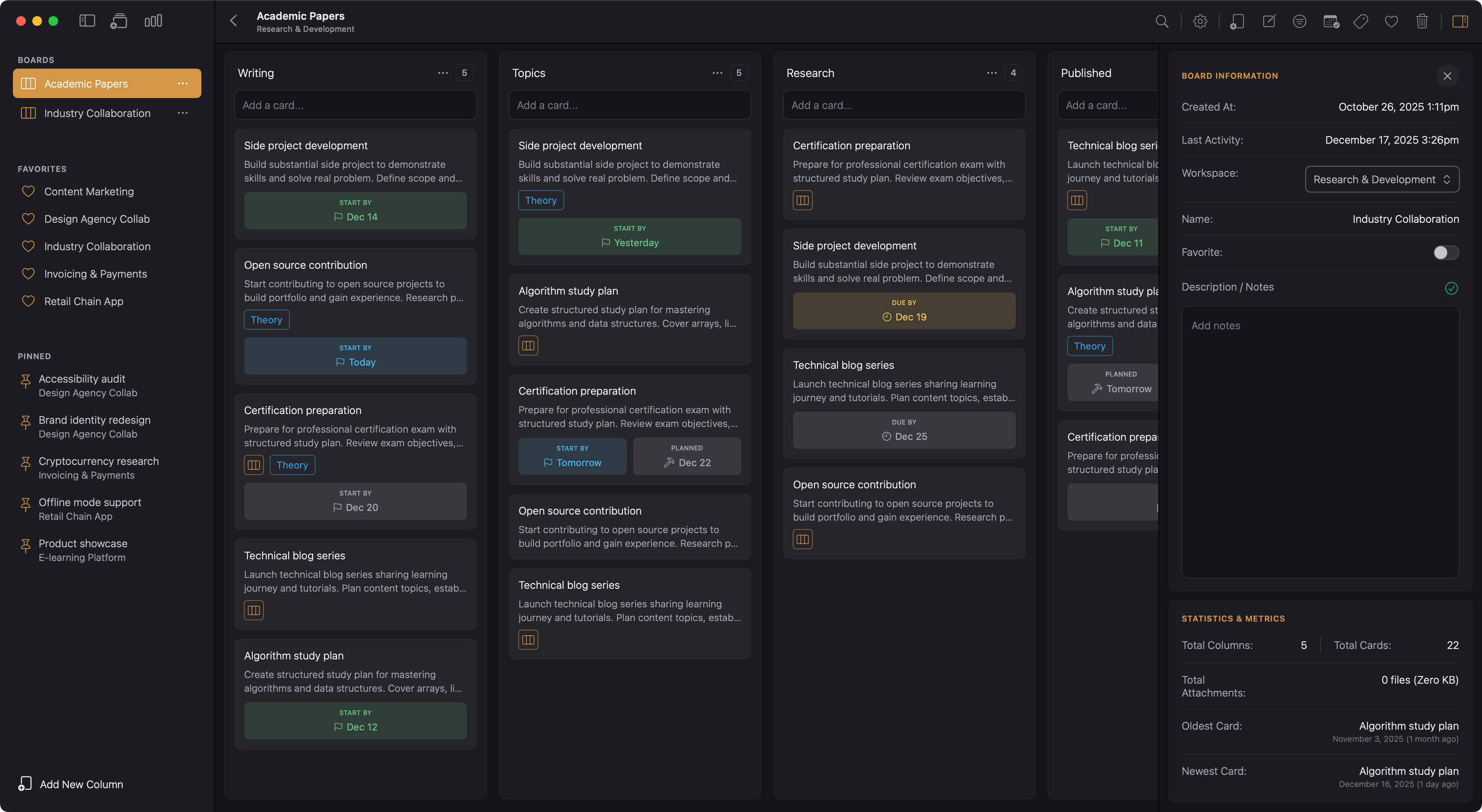
Kanodo uses a clear hierarchy. Workspaces are top level containers for different areas of your life. Boards within workspaces represent specific projects.

Columns on boards show workflow stages. Cards are individual tasks that move between columns. Mini boards inside cards let you break down complex tasks further.

Can I use Kanodo offline?

Yes. Kanodo stores all your data locally on your Mac, so you can work without an internet connection. Your workspaces, boards, cards and all their content are available whenever you need them.

If you use iCloud for attachments, those files may need to download when accessed on other devices.
Pricing

Is Kanodo free to use?

Kanodo offers a basic version with full access to all features but with generous limits on how many items you can create. This allows you to fully evaluate the app before deciding to upgrade

The Pro version removes all limitations for an affordable one time purchase of £29.99. Yours to keep forever with continual updates and access to all new future features.

What are the free version limits?

The basic free version includes one workspace, two boards, three columns per board, 100 cards total, 5 labels per board, 5 attachments per card, one mini column per card, 10 mini cards and 5 checklist items per mini card.

This gives you room to explore how Kanodo works and decide if it fits your workflow. All features are available within these limits.

Is Pro a subscription?

No. Pro is a one time purchase of £29.99, not a subscription. You pay once and have Pro permanently with no recurring fees.

The purchase is processed through the App Store using your Apple ID payment method. You can restore your purchase on other Macs signed into the same Apple ID.

Can I try before I buy?

Yes. The basic version includes every feature so you can test workspaces, boards, cards, mini boards, labels, attachments, search, dashboards, filtering, calendar export and all settings.

The only difference between Pro and Basic is restricted limits. Upgrade when you need more.

What happens if I hit a limit?

When you try to create an item that exceeds a limit, Kanodo displays a message explaining which limit you have reached and offers the option to upgrade.

Existing items are not affected. You can continue using the basic version or upgrade to Pro to remove all limits.

How do I request a refund?

Kanodo does not handle payments or refunds directly as all transactions are processed through the App Store.

Refunds are handled through the App Store according to Apple's refund policy. Contact Apple Support if you need to request a refund.

Features & Capabilities

Can I open multiple cards at once?

Yes. Cards open in their own windows rather than modals. This means you can have multiple card windows open at the same time, even from different boards or workspaces.

Compare tasks side by side, reference one card while working on another, or keep important cards visible while you navigate your boards. Arrange windows however suits your workflow.

What are mini boards?

Mini boards let you create a nested kanban board inside a card. When a task has multiple steps, you can track them as mini cards without cluttering your main board.

Mini cards can have their own content, completion status, checklists and labels. This is perfect for complex tasks that need breaking down.

Can I attach files to cards?

Yes. You can attach files to cards by dragging and dropping or using the file picker. Supported formats include documents, images and other file types.

Attachments can be stored locally or in iCloud. You can set limits on file size and number of files per upload in Settings.

Can I set due dates on cards?

Cards support three date types: earliest start date, planned start date and due date. Dates appear as badges on cards and can show warning colours when deadlines approach.

You can configure how many days before a due date the warning appears or you can decide to disable dates altogether.

How do labels work?

Labels are colour coded tags you create for each board. Apply them to cards for visual identification, then use filtering to show only cards with specific labels.

Each board has its own set of labels, so you can customise the categorisation system for each project's specific needs.

Can I filter cards on a board?

Yes. You can filter by labels, cards with attachments, cards with content, or cards with mini boards. Filters can be combined.

When active, cards that do not match your criteria are temporarily hidden. Clear filters to see all cards again. Filters do not persist when you navigate away.

What are dashboards?

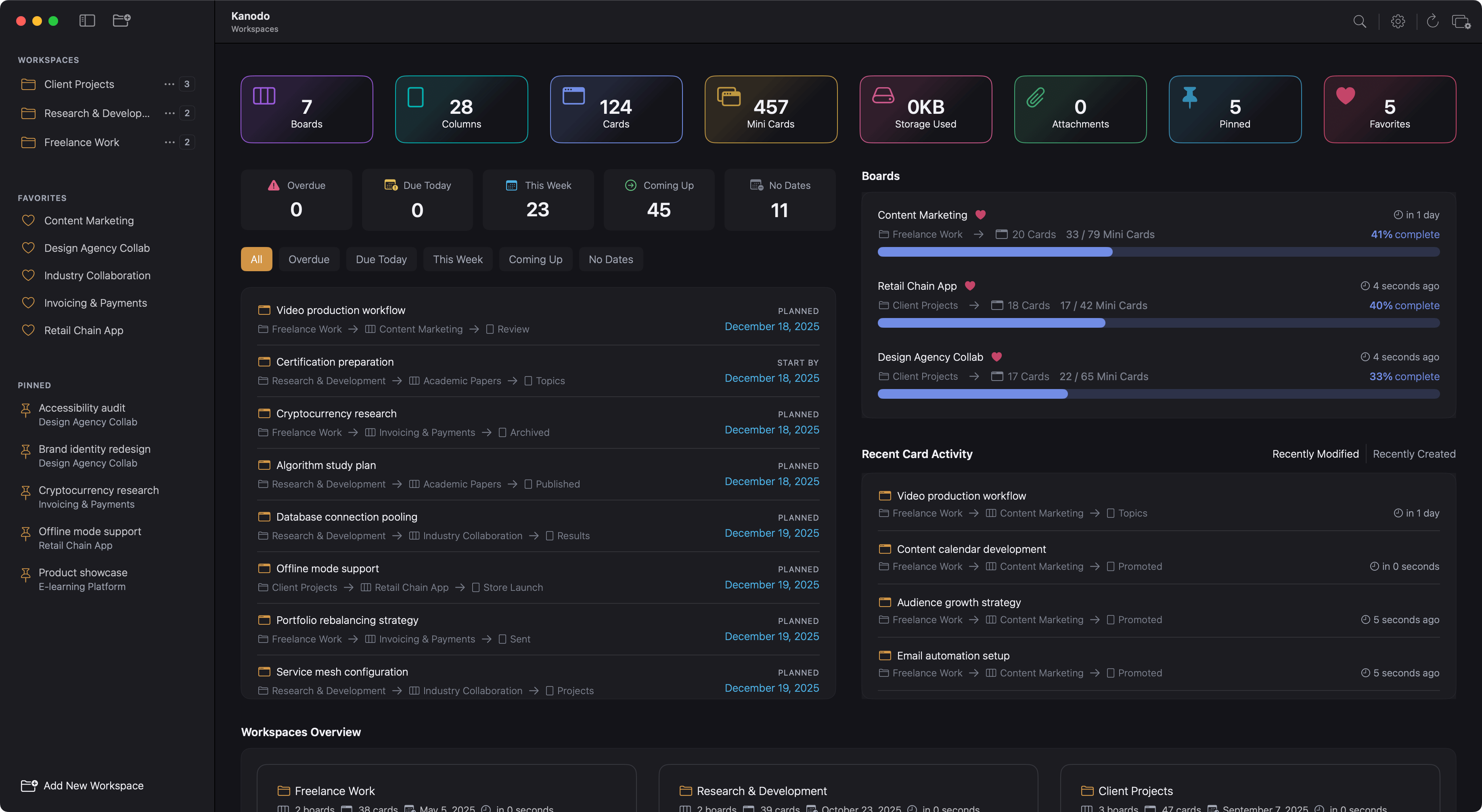
Dashboards provide at a glance overviews of your work. They show statistics, recent activity, upcoming dates and how cards are distributed across columns and labels.

You can view dashboards for individual workspaces or across all workspaces. Customise which widgets appear in Settings.

Can I favourite boards?

Yes. Mark frequently used boards as favourites and they appear in a dedicated section at the top of the sidebar. This provides quick access regardless of which workspace you are viewing.

You can also pin important cards to the sidebar for instant access from anywhere in the app.

Can I export my data?

You can export board dates to ICS calendar format for viewing in Apple Calendar, Google Calendar or other applications.

The export creates calendar events for cards with dates set. This is a snapshot export rather than a live sync, so you need to export again to get updated dates. We are looking to integrate iCalendar in the future.

What can I search for in Kanodo?

Kanodo offers comprehensive search across all your data. Find cards by title or content, locate mini cards within nested boards, or search for attachments by filename.

Results are organised by type and clicking any result takes you directly to that item. Use board search when working on a specific board, or global search to find anything anywhere.

Security & Privacy

Is my data private?

Your data remains private and never leaves your computer unless you choose to enable iCloud storage for attachments.

The app stores everything locally using Core Data, giving you full control over your information. There are no accounts, no cloud services required and no tracking.

Where is my data stored?

All workspace data is stored locally on your Mac using Core Data. This means fast performance, full offline access and complete privacy.

If you enable iCloud storage for attachments, those files sync via iCloud, but your workspace structure and card data remain local.

Does Kanodo require an account?

No. Kanodo does not require any account or sign up. Simply download the app from the Mac App Store and start using it immediately.

Your data is stored locally on your Mac. You have complete ownership of everything you create within the Kanodo App.

Who can access my data?

Only you. Kanodo has no user accounts, no cloud sync for workspace data, and no multi user features. The data on your Mac is accessible only to anyone with access to your Mac itself.

Your information never leaves your computer except attachment files when iCloud storage is enabled.

What happens to data if I stop using Kanodo?

Your data remains on your Mac until you choose to delete it. Kanodo never holds your data hostage. You can export dated cards to calendar format anytime.

Uninstalling the app does not automatically remove your data from the application container.

Is my data included in Time Machine backups?

Yes. When using local storage, your data and attachments are stored in the application container and are included in Time Machine backups of your Mac.

If you use iCloud storage for attachments, those files are backed up via iCloud instead.

Kanodo Workspace Kanban Board

Native Kanban with a
Natural Workflow

Workspaces, boards and cards with nested mini boards. Break down complex tasks and see the big picture.

Mini Boards
Multi Cards
Dashboards
Offline Ready
MacOS 14.6+
Kanodo app dashboard

Data & Storage

Can I sync between Macs?

Workspace and card data does not sync between devices. However, if you enable iCloud storage for attachments, your files sync across Macs signed into the same iCloud account.

Settings are also stored locally and need to be configured on each Mac separately.

What is the difference between local and iCloud storage?

Local storage keeps attachments on your Mac only. They are available offline and do not count against iCloud quota.

iCloud storage syncs attachments across devices signed into the same iCloud account but files may need time to download and count against your iCloud quota.

Can I migrate attachments to iCloud?

Yes. If you have existing local attachments and enable iCloud storage, you can migrate files using the migration feature in Settings.

This copies each file to iCloud. You can also migrate back from iCloud to local storage if you disable iCloud storage later.

What happens when I delete a card?

Deleting a card permanently removes it along with all content, dates, label assignments, attachments and any mini board it has.

This cannot be undone. You can enable confirmation dialogs in Settings to protect against accidental deletions. Download attachments first if needed.

What happens when I delete a board?

Deleting a board permanently removes all columns, cards, labels and attachments it contains. This action cannot be undone.

Consider whether any cards contain attachments you need to preserve. Download important files or move cards to another board before deleting.

What file types can I attach to cards?

Kanodo accepts any file type as an attachment. Common uses include documents, images, specifications and design files.

Each file must be smaller than your configured maximum file size limit. You can adjust both the file size limit and maximum files per upload in Settings.

Technical Questions

What are the system requirements?

Kanodo requires 14.6+ (Sonoma) or later and is fully compatible with both Apple Silicon and Intel Macs.

The app requires minimal disk space for itself, though data storage depends on your attachments. No internet connection is required except for iCloud attachment sync.

Does Kanodo slow down my computer?

No. Kanodo is a native macOS application optimised for performance. It runs efficiently without impacting your system resources.

The app integrates seamlessly with macOS and you can leave it running while you work without noticing any slowdown.

How much disk space does Kanodo use?

The app itself requires minimal disk space. Your data storage depends on how many cards you create and the size of your attachments.

Attachments are stored in the application container locally or in iCloud Drive if you enable iCloud storage.

Does Kanodo support dark mode?

Yes. You can choose between System Default, Light Mode or Dark Mode in Settings.

System Default follows your Mac's appearance setting, which is useful if you have your Mac set to change appearance automatically throughout the day.

Can I customise date formats?

Yes. Settings lets you configure both long and short date formats independently. Long formats appear in detailed views like card details and dashboards.

Short formats appear on card badges. Choose formats that match your regional preference and reading habits.

Does Kanodo support Markdown?

Yes. The card content editor supports Markdown formatting including headings, bold, italic, strikethrough, bullet lists, numbered lists, links, code blocks, horizontal rules and images.

Use toolbar buttons or type Markdown syntax directly. Toggle between editing and preview modes to see formatted content.

Troubleshooting

Why are my attachments showing as unavailable?

If an attachment file is missing, perhaps deleted outside of Kanodo or unavailable in iCloud, the attachment entry remains but you cannot open or download the file.

Kanodo displays a message indicating the file is unavailable. You can delete the entry to clean up.

Can I recover deleted cards?

No. Deleting cards, columns, boards and workspaces is permanent and cannot be undone. Enable the confirmation dialog setting to protect against accidental deletions.

Always download attachments and consider whether you need to preserve any content before deleting.

Why can I not enable iCloud storage?

If iCloud is not available, the option is disabled and you see a message explaining this. Ensure you are signed into iCloud on your Mac in System Settings.

Once signed in, the iCloud storage option becomes available in Kanodo Settings.

How do I reset my filters?

Click the reset filters button to clear all active filters at once. You can also deselect individual labels or toggle off property filters.

When filters are reset, all cards reappear in their normal positions. Filters do not persist when you navigate away from a board.

Updates & Support

Will I get future updates?

Yes, all users receive free updates. Both basic and Pro tiers get new features and improvements.

Some features may be Pro-only or have limits on the basic tier, but the core functionalnity is available to everyone.

Is any documentation available?

Yes, Kanodo includes comprehensive user guides covering everything from getting started to advanced features.

Alternatively, you can access the documentation page directly from the app's Help menu.

How do I get support?

Email is the fastest way to get help, with typical response times within 48 - 72 hours.

You can reach us through the contact page, which provides direct email links and a contact form for your convenience.

Can I request features?

Absolutely. Feature requests are welcomed and considered for future releases based on user needs.

You can submit requests by contacting us. Your input helps shape the future development of Kanodo.