Welcome to Kanodo, a powerful kanban-style task management application designed exclusively for macOS. This guide will help you understand every aspect of the app, from basic concepts to advanced features.
What is Kanodo?
Kanodo is a visual project management tool that uses the kanban methodology to help you organise tasks, track progress, and manage projects. The kanban approach originated in manufacturing but has become widely popular for personal productivity and team collaboration. At its core, kanban is about visualising your work as cards that move through columns representing different stages of completion.
Unlike web-based project management tools, Kanodo runs natively on your Mac, providing a fast, responsive experience with your data stored locally. This means you can work offline, your information remains private, and the app integrates seamlessly with macOS.
Understanding the hierarchy
Kanodo organises your information in a clear hierarchical structure. Understanding this structure is key to using the app effectively.
Workspaces
At the top level are workspaces. Think of a workspace as a container for related projects. You might create separate workspaces for different areas of your life, such as one for personal tasks, another for work projects, and perhaps a third for a side business or hobby.
Each workspace is completely independent, with its own set of boards, cards, and labels. This separation helps you focus on one area at a time without being distracted by unrelated tasks.
Boards
Within each workspace, you create boards. A board represents a single project, initiative, or collection of related tasks. For example, within a "Work" workspace, you might have boards for "Website Redesign", "Q1 Marketing Campaign", and "Team Onboarding".
Each board has its own columns, cards, and label system. This allows you to customise the workflow for each project according to its specific needs.
Columns
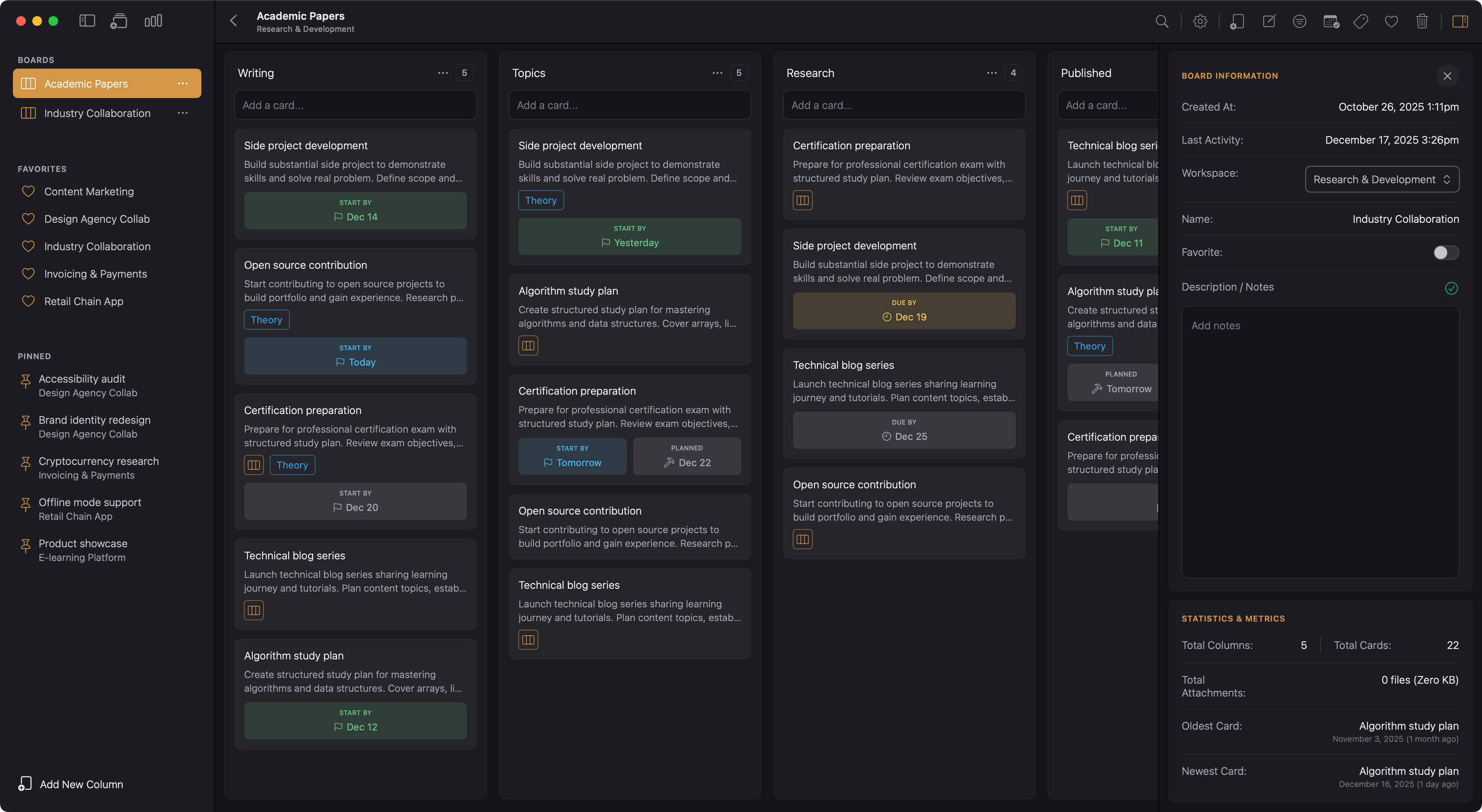
Columns provide horizontal organisation on your boards. They typically represent stages in a workflow. A common setup includes columns like "To Do", "In Progress", and "Done", but you can create any columns that suit your process. A content creation workflow might use "Ideas", "Drafting", "Review", and "Published". A bug tracking board might use "Reported", "Investigating", "Fixing", and "Resolved".
Cards move between columns as work progresses, giving you a visual representation of where everything stands.
Cards
Cards are the core items in Kanodo. Each card represents a task, idea, note, or any piece of work you want to track. Cards contain a title, optional detailed content, dates, labels, file attachments, and even a nested mini-board for complex tasks.
Cards live within columns and can be dragged between them. This movement is the essence of kanban: visualising work flowing through your process.
Mini-boards
For complex tasks that need to be broken down further, cards can contain their own mini-board. This nested kanban board has its own mini-columns and mini-cards, allowing you to manage subtasks without cluttering your main board. Mini-cards can have checklists for even finer-grained task tracking.
Explore the Docs
This guide is organised to follow your journey from getting started to mastering advanced features.
Getting started
- Getting started - First launch, permissions, and creating your first workspace
Core concepts
- Workspaces - Creating and managing your top-level containers
- Boards - Setting up and organising project boards
- Columns - Structuring your workflow with columns
- Cards - Working with tasks, content, and dates
Advanced features
- Mini-Boards - Breaking down complex tasks with nested kanban boards
- Labels - Categorising and filtering with colour-coded tags
- File Attachments - Adding files and managing storage
Finding and viewing
- Search - Finding items across your workspaces
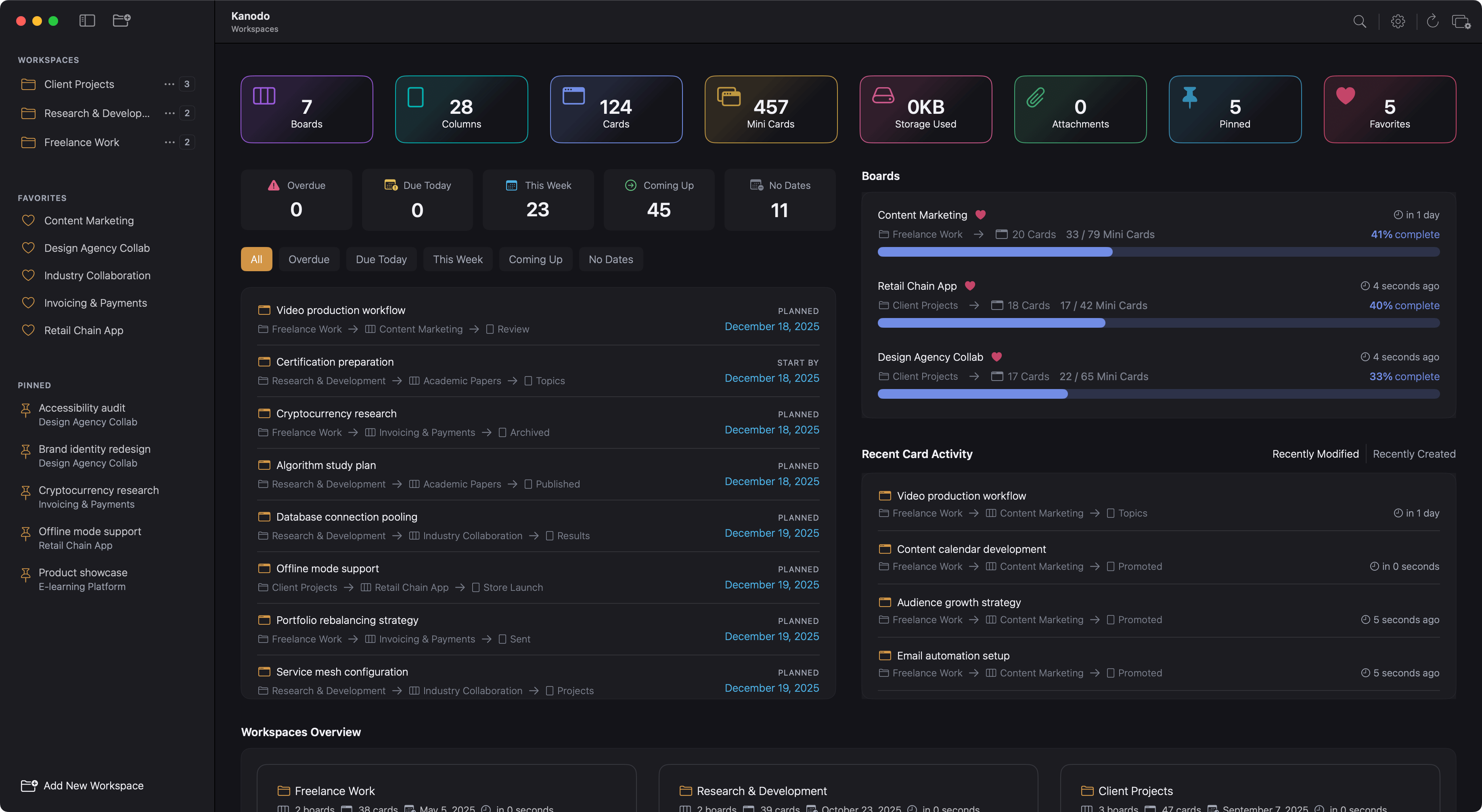
- Dashboards - Overview screens, statistics, and activity tracking
- Filtering - Narrowing down visible cards on boards
Data and export
- Calendar Exporting - Exporting dates to calendar applications
Customisation
- Settings - Configuring the app to match your preferences
Upgrading
- Basic Vs Pro - Understanding version limits and upgrading
Quick start
If you want to get up and running quickly, here is the essential path:
- Open Kanodo and complete the welcome setup to create your first workspace and board
- Add columns to your board representing your workflow stages
- Create cards for your tasks and drag them between columns as work progresses
- Use labels to categorise cards and make them easy to identify at a glance
The rest of this guide provides comprehensive detail on every feature, but these four steps will have you productively using Kanodo within minutes.