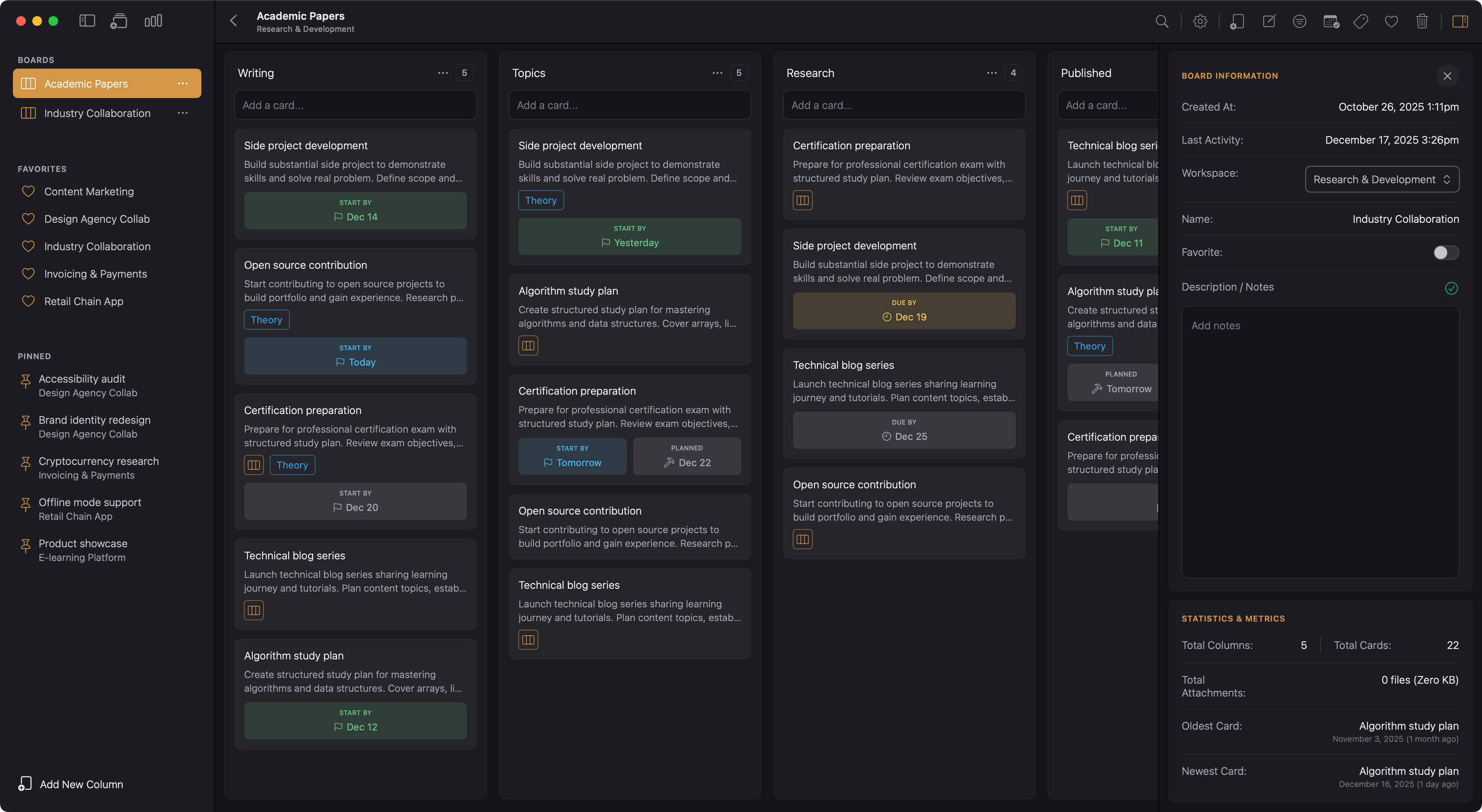
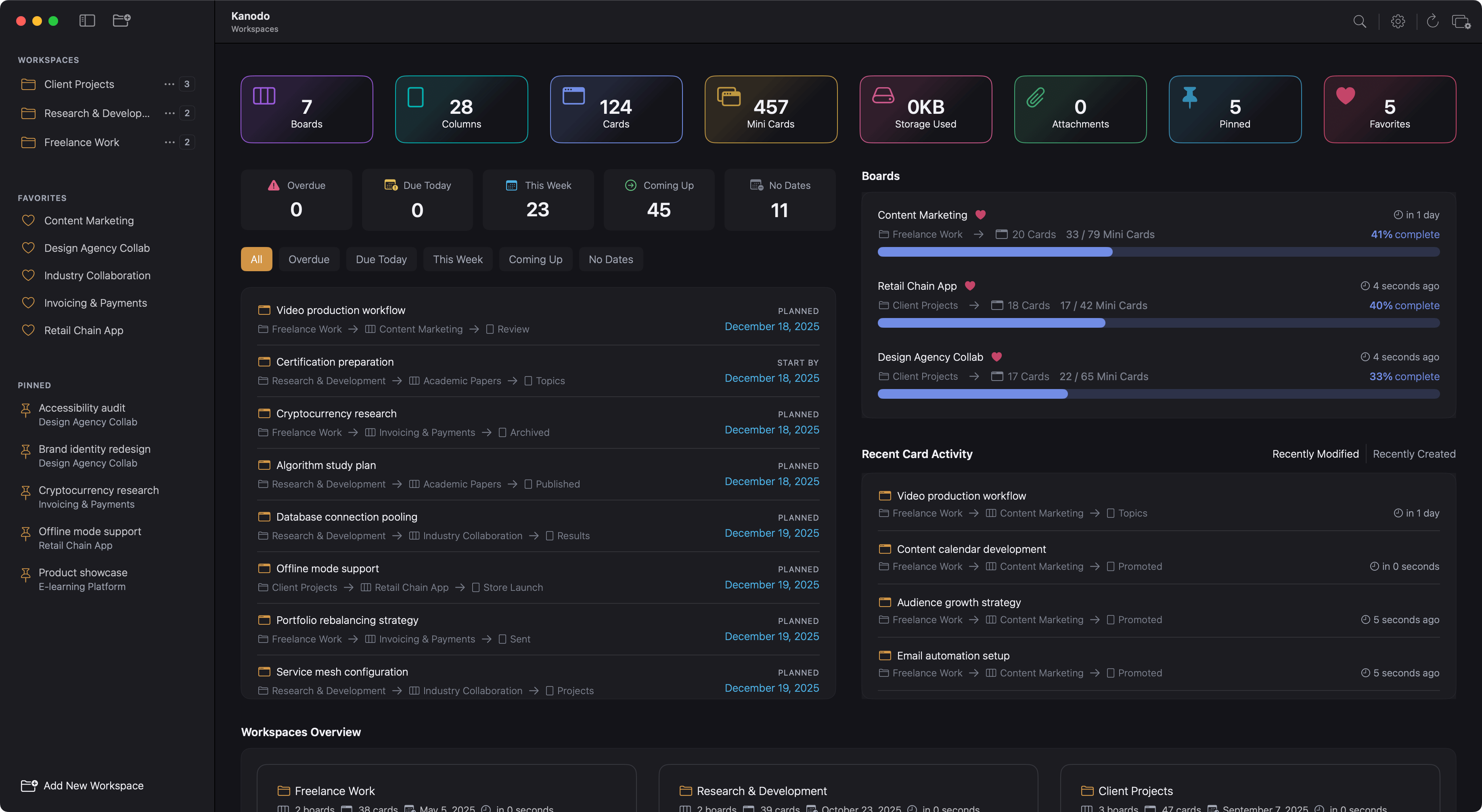
Boards are the primary working surfaces in Kanodo. Each board represents a project, initiative, or collection of related tasks. Within a board, you organise work using columns and cards in the classic kanban style.
Understanding boards
A board is where your actual work management happens. While workspaces provide high-level separation between life areas, boards are where you dive into specific projects. A "Work" workspace might contain boards for "Website Redesign", "Q1 Marketing", and "Team Onboarding". A "Personal" workspace might have "Home Renovation", "Fitness Goals", and "Reading List".
Each board has its own:
- Columns representing workflow stages
- Cards containing tasks and items
- Labels for categorisation (unique to each board)
- Description and notes
- Statistics and activity tracking
Creating a board
To create a new board, first navigate to the workspace where you want the board to live. The sidebar shows the workspace's existing boards and an add button.
Click the add button available in the sidebar footer and the sidebar toolbar to create a new board. A modal with a text field appears for you enter the board name. Choose a name that clearly identifies the project or collection of tasks this board will contain.
Press return or click the "Create new Board" to create the board. The modal will close and the new board will appear in the sidebar. Your new board will automatically be loaded where you can start adding columns.
Naming considerations
Board names should be:
- Specific: Identifying a particular project or area
- Descriptive: Clear about what the board contains
- Actionable: Related to work you need to manage
Examples of good board names:
- "Website Redesign 2024"
- "Q1 Marketing Campaign"
- "Client: Smith Project"
- "Weekly Tasks"
- "Reading List"
- "Home Renovation"
Viewing a board
Click on a board in the sidebar to open it. The main area displays the kanban board with columns arranged horizontally. Cards appear within their respective columns.
Board layout
The board scrolls horizontally if you have more columns than fit on screen. Cards within columns scroll vertically if there are many cards.
Each column shows:
- The column name in the header
- A card count (if enabled in settings)
- The cards within that column
- An "Add card" area at the top
Real-time updates
The board view updates in real time. If you add or modify cards, the changes appear immediately. Card content, dates, labels, and other properties reflect their current state.
Board sidebar
Each board has an associated sidebar panel that provides additional information and management options. Access it by clicking the sidebar icon in the main toolbar when viewing a board.
Information section
The information section displays:
- Board name: Click to edit
- Workspace: Shows which workspace the board is linked to. Use this to change the boards workspace.
- Created: The date and time of when the board was first created
- Last activity: The date and time any content linked to this board was added or last modified
- Favourite toggle: Allows you to toggle favouriting of this board on and off.
- Description: A text area container to add notes about the board.
The description field is useful for recording the board's purpose, goals, or any context that helps you remember what this project is about. Click in the field to edit, and your changes save automatically.
Statistics section
The statistics section provides useful numbers about the board:
- Total columns: How many columns exist on the board
- Total cards: How many cards across all columns
- Total attachments: How many files are attached to cards
- Newest card: When the most recent card was created
- Oldest card: When the first card was created
These statistics help you understand the scope and age of work on the board.
Labels sidebar
Clicking the label or tag icon in the boards main toolbar opens the label management sidebar. This shows all labels defined for this board and provides management controls. From here you can:
- View all existing labels
- Create new labels
- Edit label names and colours
- Delete labels
See labels for detailed information on working with labels.
Board filters
Every board has filters available for it. Click the filter icon in the boards main toolbar and a popover will show with the following filters available.
- Only show cards with file attachments
- Only show cards which have any card content (markdown content)
- Only show cards which have a mini-board
- Filter by labels available to the board
Applying filters will update board columns and cards to only display data relevant to the filters you have set.
Favouriting boards
If you frequently access certain boards, you can mark them as favourites. Favourite boards appear in a dedicated section at the top of the sidebar, providing quick access regardless of which workspace you are currently viewing.
Adding a favourite
To favourite a board, right-click on it in the sidebar and select "Add to Favourites" from the context menu. The board immediately appears in the Favourites section.
You can also favourite a board when viewing the board by clicking the heart icon at the top right of the main toolbar. Alternatively you can toggle favouriting on or off via the board information sidebar.
Removing a favourite
To remove a board from favourites, right-click on it (either in the Favourites section or in its workspace) and select "Remove from Favourites". A confirmation dialog appears to ensure this is intentional.
You can also unfavourite a board when viewing the board by clicking the red heart icon at the top right of the main toolbar. Alternatively you can toggle favouriting on or off via the board information sidebar.
The board remains in its workspace; only the favourite shortcut is removed.
Benefits of favourites
Favourites are useful when:
- You work on specific boards daily and want quick access
- You manage boards across multiple workspaces
- You want to highlight currently active projects
- You need to jump between boards frequently
The Favourites section can be hidden entirely in Settings if you do not use this feature.
Renaming a board
To rename a board, right-click on it in the sidebar and select "Rename Board" from the context menu. The name becomes editable. Type the new name and press return or click outside the field to save.
You can also rename a board from the board sidebar panel by clicking on the board name in the information section. Alternatively clicking the Pencil icon in the boards main toolbar will open a modal for you to edit the board name.
Deleting a board
To delete a board, right-click on it in the sidebar and select "Delete Board" from the context menu.
Important: Deleting a board permanently removes all columns, cards, labels, and attachments it contains. This action cannot be undone.
A confirmation dialog appears to ensure you intend to proceed. If you are certain, confirm the deletion. Alternatively when viewing a board, click the trash can icon in the boards toolbar.
Before deleting, consider:
- Do any cards contain attachments you need to preserve?
- Would archiving (moving cards to another board) be more appropriate?
- Have you completed the project and no longer need the records?
If you want to preserve some content, consider moving cards to another board before deleting.
Board limits
The basic version of Kanodo allows two boards total (across all workspaces). The Pro version removes this limit, allowing unlimited boards.
See Basic Vs Pro for details on version differences.
Working efficiently
Board per project
The most common pattern is one board per project. Each project has distinct phases and tasks that benefit from their own kanban view.
Ongoing boards
Some boards represent ongoing areas rather than finite projects. A "Weekly Tasks" board might be used indefinitely, with cards moving through columns each week. A "Reading List" board might persist as long as you continue reading.
Archiving completed work
When a project completes, you have several options:
- Delete the board: If you no longer need the records
- Keep the board: As a reference for what was accomplished
- Clear completed cards: Remove done items while keeping the board structure
There is no built-in archive feature, so the choice depends on your needs. Completed boards do not impact app performance, so keeping them for reference is reasonable.
Exporting board dates
Boards with dated cards can be exported to ICS calendar format. This allows you to view your task dates in calendar applications like Apple Calendar, Google Calendar, or Outlook.
To export, View the board you would like to export dates for. Click the calendar icon in the boards main toolbar. This will prompt you for the file name to save as.
See calendar export for details on the export format and how to use the exported file.