Workspaces are the top-level organisational containers in Kanodo. They provide separation between different areas of your life or work, allowing you to focus on one context at a time without being distracted by unrelated tasks.
Understanding workspaces
Think of a workspace as a folder that contains everything related to a particular domain. A freelance designer might have separate workspaces for "Personal", "Client Work", and "Side Projects". A student might use "University", "Part-time Job", and "Personal". The exact structure depends entirely on how you think about your responsibilities and goals.
Each workspace is completely independent. The boards, columns, cards, and labels within one workspace have no connection to those in another. This isolation is intentional: when you select a workspace, you see only what is relevant to that context.
Creating a workspace
To create a new workspace, locate the workspaces section in the sidebar. At the bottom of this section, you will find an add button. Click it to begin creating a new workspace. Alternatively you will see an add workspace button in the sidebar toolbar indicated by a folder icon showing a plus symbol.
When the modal with a text field appears, enter the name for your workspace. Choose a name that clearly identifies the area of focus. Good workspace names are broad categories rather than specific projects. "Work" is a good workspace name; "Q1 Marketing Report" would be better as a board name within a "Work" workspace.
After entering the name, press return or click the "Add new workspace" button to create the workspace. After creating, the workspace will appear immediately in your sidebar, ready for you to add boards.
Workspace name length limits
Workspace names have a character limit of 50 characters to ensure they display well throughout the interface.
Naming considerations
Workspace names should be:
- Broad: Representing a life area rather than a single project
- Clear: Immediately understandable when you see them in the sidebar
- Distinct: Different enough from each other to avoid confusion
Examples of good workspace names:
- "Work" or your company name
- "Personal"
- "Freelance" or "Clients"
- "Home"
- "Learning"
Examples that might work better as board names:
- "Website Redesign" (too specific for a workspace)
- "March Tasks" (time-bound, better as a board)
- "Shopping List" (too narrow)
Viewing workspaces
Click on a workspace name in the sidebar to view it. What you see depends on your dashboard settings.
With workspace dashboard enabled
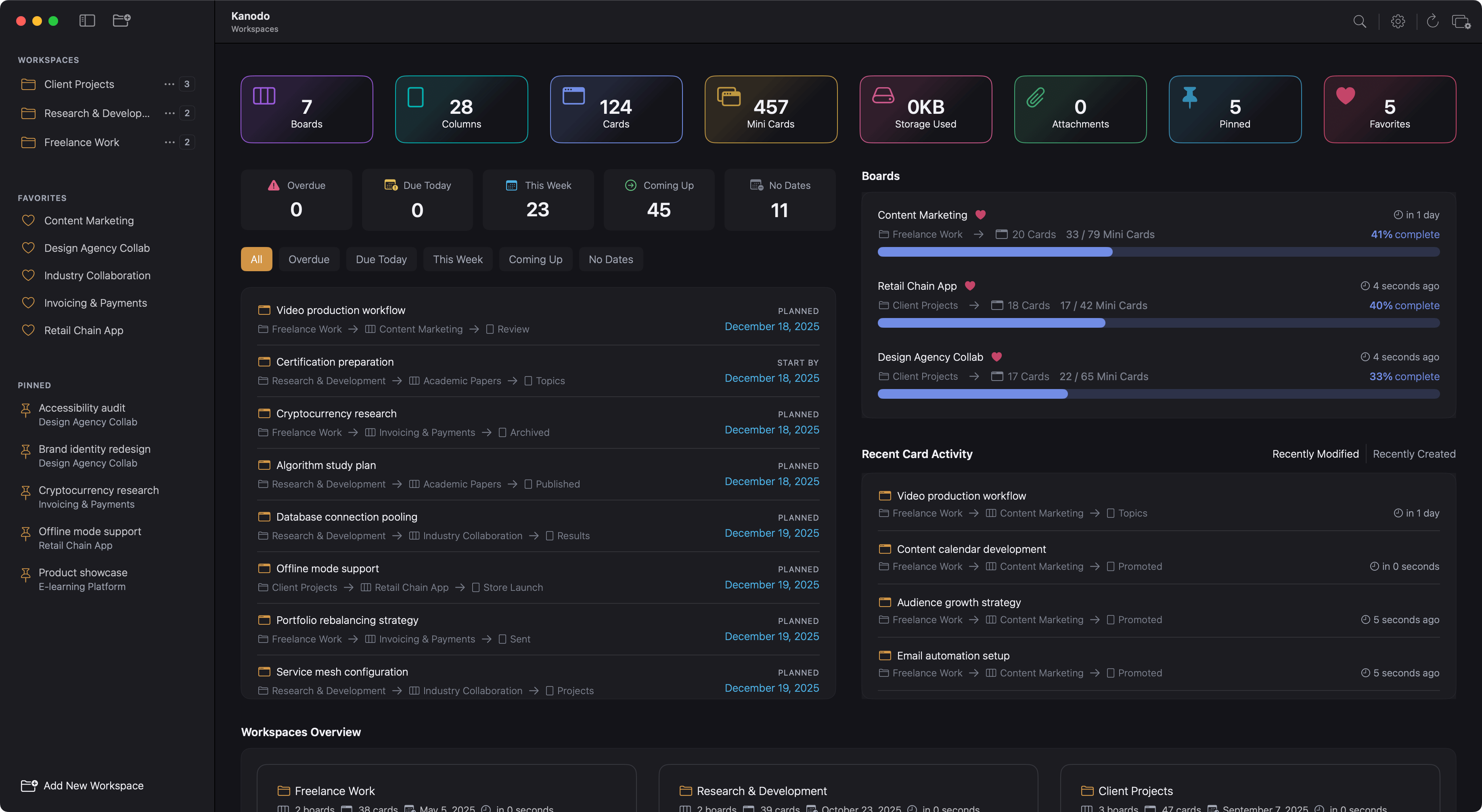
When workspace dashboards are enabled (the default), clicking a workspace shows you an overview dashboard. This dashboard provides at-a-glance information about activity within the workspace, including statistics, recent activity, and upcoming dates. See [link route="docs.doc" param="dashboards" text="dashboards] for detailed information about dashboard widgets and customisation.
With workspace dashboard disabled
If you prefer not to use dashboards, you can disable them in Settings. In this case, clicking a workspace shows you a simpler view prompting you to select a board from the sidebar.
Viewing all workspaces
When you are at the top level (not inside any specific workspace), the sidebar shows all your workspaces. If you have enabled the workspaces dashboard, the main area shows an overview across all workspaces.
Managing content
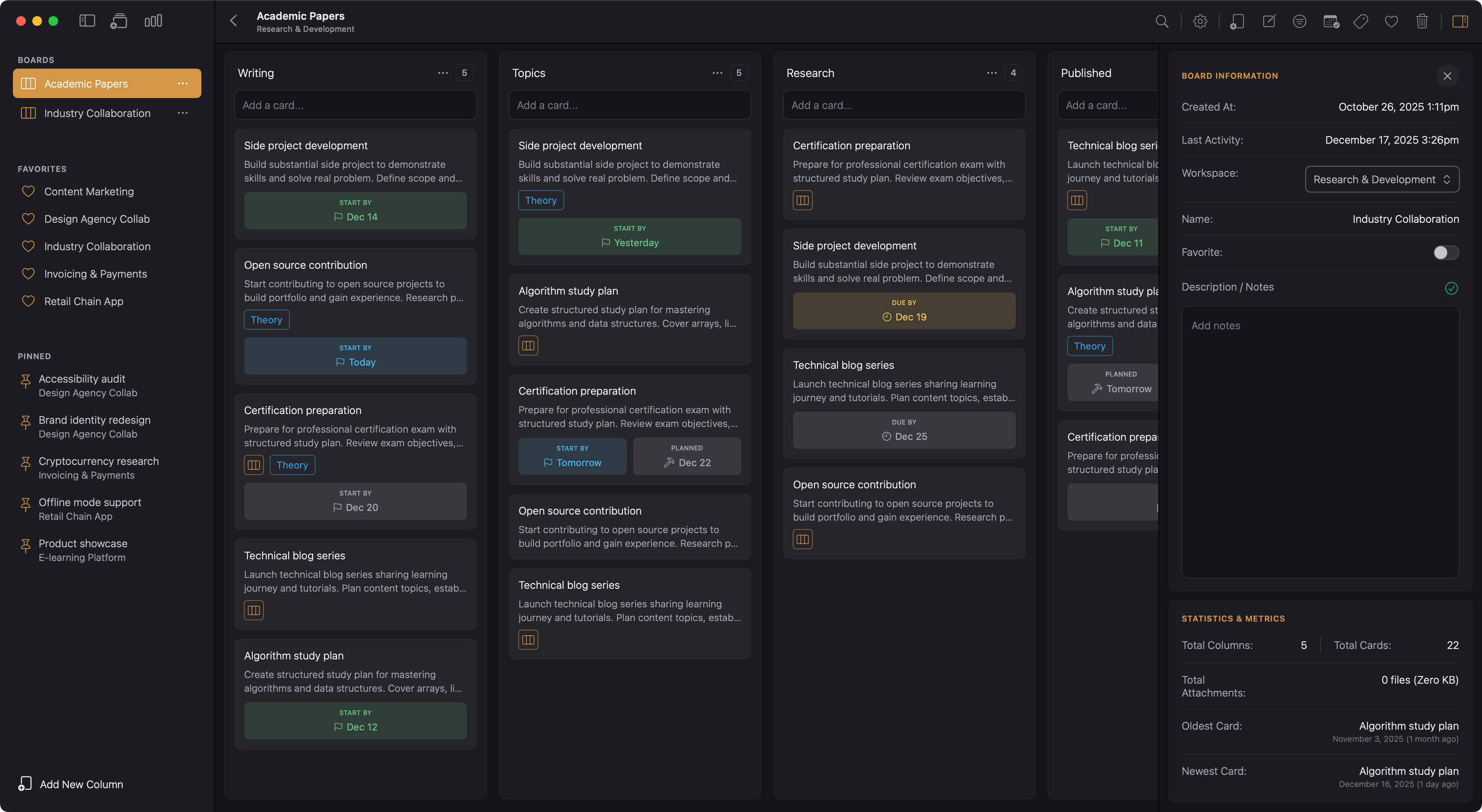
Once you have selected a workspace, the sidebar changes to show that workspace's content. You see:
- The workspace name at the top
- A back button to return to the workspaces list
- All boards within the workspace
- An add button to create new boards
From here, you can manage the boards within the workspace. See boards for details on creating and managing boards.
Renaming a workspace
To rename a workspace, right-click on it in the sidebar. A context menu appears with several options. Select "Rename workspace" to edit the name.
A modal will open allowing you edit the workspace name. After editing the workspace name, press return or click the save changes button to save your changes. The modal will close and the workspace will show with the new name immediately.
When to rename
You might rename a workspace when:
- The original name no longer reflects its contents
- You want to reorganise how you think about your work
- The name was a placeholder and you now have a better idea
- You are consolidating or splitting areas of focus
Deleting a workspace
To delete a workspace, right-click on it in the sidebar and select "Delete Workspace" from the context menu.
Important: Deleting a workspace permanently removes everything it contains. All boards, columns, cards, labels, and attachments within the workspace are deleted. This action cannot be undone.
A confirmation dialog appears to ensure you intend to proceed. The dialog reminds you that all content will be lost. If you are certain, confirm the deletion.
Before deleting
Before deleting a workspace, consider:
- Have you backed up any important information?
- Do any cards contain attachments you need to preserve?
- Would it be better to delete individual boards instead?
If you only want to remove some boards, delete those boards individually rather than the entire workspace.
What happens to attachments
When you delete a workspace, all file attachments stored within cards in that workspace are also deleted from storage (either local or iCloud, depending on your settings). Make sure to download any files you need to keep before deleting.
Workspace limits
The basic version of Kanodo allows one workspace. If you need multiple workspaces to organise different areas of your life, upgrading to the Pro version removes this limit, allowing unlimited workspaces.
See Basic Vs Pro for details on version differences and how to upgrade.
Multiple workspaces
Once you have the Pro version and can create multiple workspaces, some patterns become useful.
Switching between workspaces
To switch from one workspace to another, either:
- Click the back button in the sidebar to return to the workspaces list, then click the desired workspace
- Use the workspaces dashboard (if enabled) to see all workspaces at once
Favourites across workspaces
When you favourite a board, it appears in the Favourites section of the sidebar regardless of which workspace you are currently viewing. This provides quick access to your most important boards without navigating through workspaces.
Pinned cards across workspaces
Similarly, pinned cards appear in the Pinned section of the sidebar from anywhere in the app. You can pin important cards from any workspace and access them quickly.
Global search
The search feature works across all workspaces. When you search, results include matches from every workspace, making it easy to find items even if you cannot remember which workspace they are in.
Workspace data storage
All workspace data is stored locally on your Mac using Core Data. This means:
- Your data remains private and never leaves your computer
- The app works fully offline
- Performance is fast and responsive
- You control your own data
If you enable iCloud storage for attachments, the files themselves sync via iCloud, but the workspace structure and card data remain local.