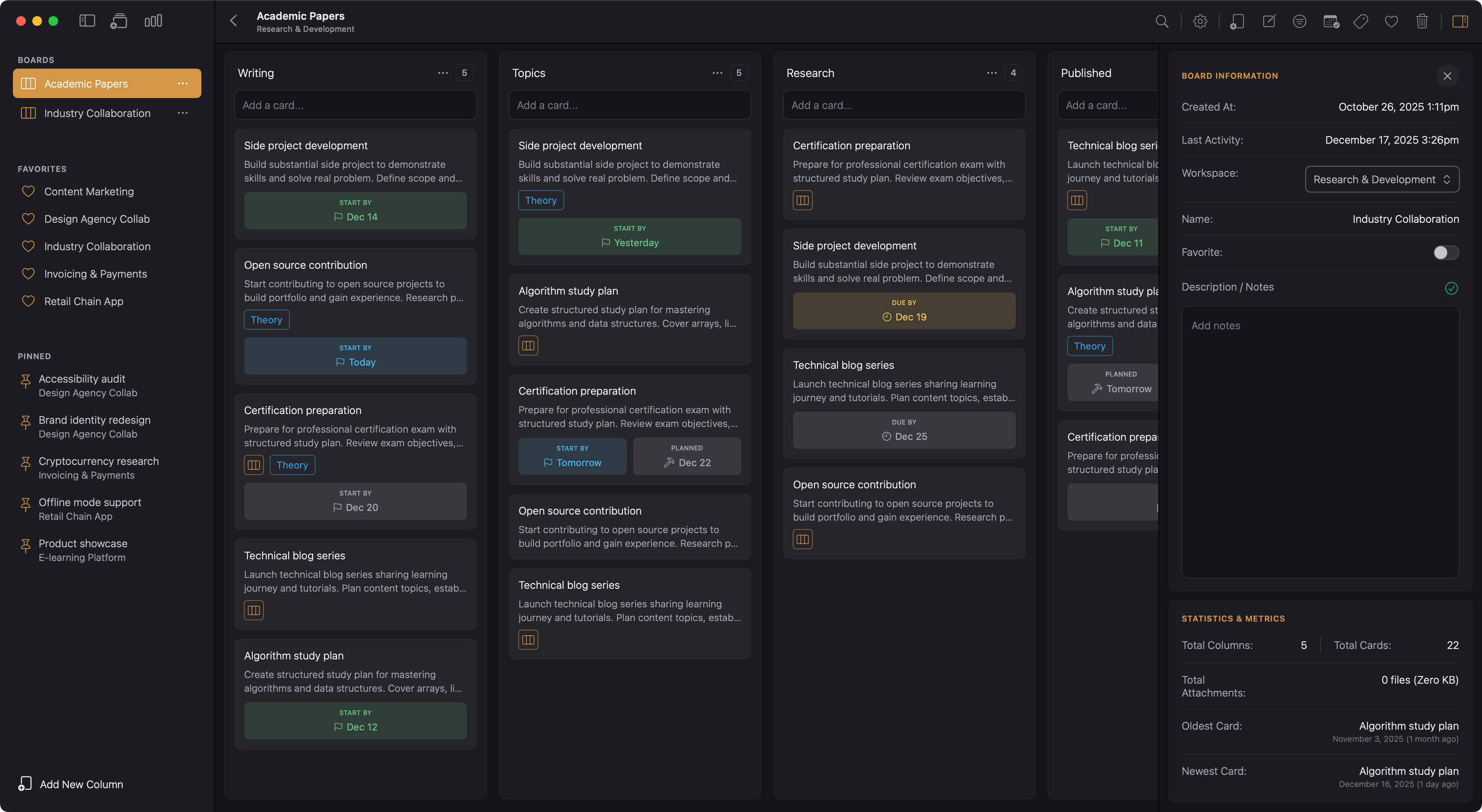
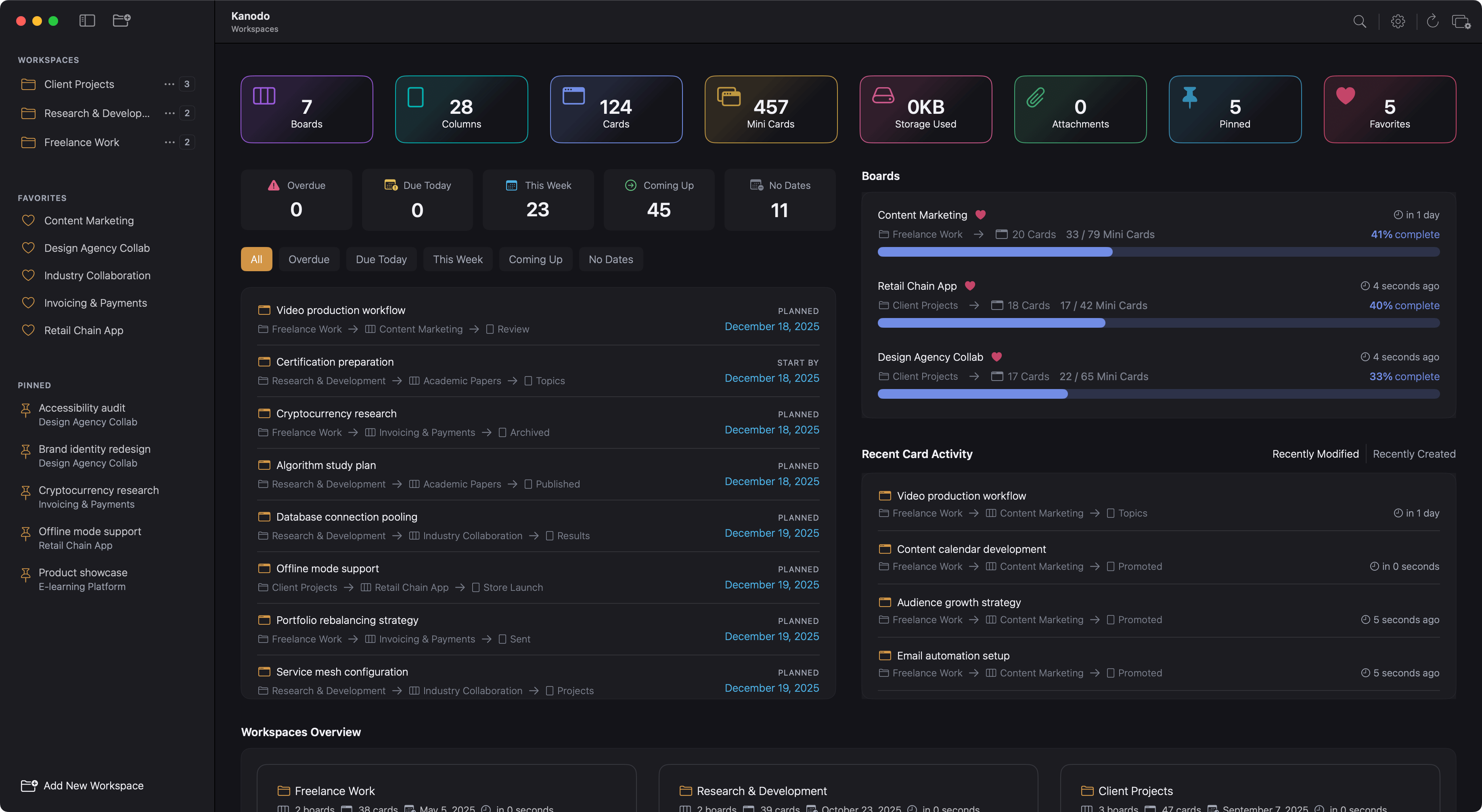
Columns provide the horizontal structure of your kanban boards. They represent stages in a workflow, categories of work, or any other grouping that helps you organise your tasks. Cards move between columns as work progresses, giving you a visual representation of where everything stands.
Understanding columns
In kanban methodology, columns typically represent stages of work. The classic setup is "To Do", "In Progress", and "Done", but the power of kanban comes from adapting this to your specific workflow.
Consider how work actually flows through your process:
- A writer might use "Ideas", "Outlining", "Drafting", "Editing", and "Published"
- A developer might use "Backlog", "Ready", "In Development", "Review", and "Complete"
- A household might use "To Buy", "To Do", "In Progress", and "Done"
The columns should reflect how work naturally moves through your process, with cards flowing from left to right as they progress.
Creating columns
When you first view an empty board, you see a prompt to create your first column. Enter the column name and press return or click the Add New Column button.
On boards that already have columns, the add column button is available in two (2) places:
- Bottom of the Kanodo main sidebar
- Main toolbar to the left indicated by a column icon with a plus symbol
Clicking both will open a modal asking you to enter the name of the column. Press return or click Add New Column to save the column. The modal will close the column will be appended to the board.
Naming your column
Enter a name that clearly describes this stage of work. Good column names are:
- Action-oriented: Describing what state work is in ("In Progress") rather than just a category
- Clear: Anyone looking at the board should understand what belongs here
- Concise: Short enough to fit in the column header without truncation
Column name length limits
Column names have a character limit of 50 characters to ensure they display well throughout the interface.
Common column patterns
Basic three-column workflow:
- To Do
- In Progress
- Done
Extended workflow with review:
- Backlog
- To Do
- In Progress
- Review
- Done
Content creation workflow:
- Ideas
- Research
- Drafting
- Editing
- Ready to Publish
- Published
Bug tracking workflow:
- Reported
- Confirmed
- Investigating
- Fixing
- Testing
- Resolved
Personal tasks with priority:
- Someday
- This Month
- This Week
- Today
- Complete
The column header
Each column displays a header containing the column name and optional card count.
Card count display
When enabled in Settings, the column header shows how many cards are in that column. This helps you quickly assess workload distribution across your workflow stages.
For example, if your "In Progress" column shows 15 cards while "To Do" shows 3, you might be taking on too much at once. Kanban philosophy often suggests limiting work in progress to maintain focus and flow.
You can enable or disable the card count display in Settings under Board Settings.
Column menu
Click on the column header to access the column menu. This menu provides options for:
- Renaming the column
- Clearing all cards from the column
- Deleting the column
Renaming columns
To rename a column:
- Click the 3-dot menu on the column to open it's menu
- Select "Rename Column"
- A modal will open
- Edit the new name
- Press return or the save changes button
- The modal will close and the column name will be updated.
When to rename
You might rename columns when:
- Your workflow has evolved and the original name no longer fits
- You are refining your process based on experience
- The current name is ambiguous or causes confusion
- You are adapting a template board to your specific needs
Reordering columns
The order of columns matters in kanban. Work typically flows from left to right, so your leftmost column should represent the earliest stage and your rightmost column the final stage.
To reorder columns:
- Click and hold on a column header
- Drag the column left or right
- A visual indicator shows where the column will be placed
- Release to drop the column in its new position
The new order saves automatically and persists across app sessions.
Drag behaviour
When dragging a column:
- The column being dragged becomes slightly transparent
- Other columns shift to make room
- A drop indicator shows the target position
- Cards within the dragged column move with it
Adding cards to columns
Each column has an "Add card" area at the top. Click this area to create a new card in that column.
- Type a title for your card and press return.
- The card appears as the first card in the column.
- Click on it to add details, dates, labels, and more.
See cards for comprehensive information on working with cards.
Quick card creation
After creating a card, the input field remains active. You can immediately type another title and press return to create multiple cards in quick succession. Click outside the input area when you are finished.
Batch card creation from pasted text
You can rapidly create multiple cards by clicking the add card area and pasting a list of card titles. A modal will show asking you what to do:
- Create a new card for each line
- Create a new card with the text given
- Do nothing
This is useful when you have a list of tasks from another source, such as an email or document, that you want to quickly add to your board.
Clearing cards from a column
Sometimes you want to remove all cards from a column without deleting the column itself. This is useful when:
- Clearing completed items from a "Done" column
- Starting fresh with a clean slate
- Removing outdated items in bulk
To clear cards from a column:
- Click the 3-dot menu on the column to open it's menu
- Select "Clear Cards"
- A confirmation dialog appears warning that all cards will be deleted
- Confirm to proceed
Important: Clearing cards permanently deletes them. This includes all card content, dates, labels assignments, attachments, and mini-boards. This action cannot be undone.
Deleting columns
To delete a column:
- Click the 3-dot menu on the column to open it's menu
- Select "Delete Column"
- A confirmation dialog appears
- Confirm to proceed
Important: Deleting a column permanently removes the column and all cards within it. All card content, attachments, and nested mini-boards are deleted. This action cannot be undone.
Before deleting
Consider whether you want to preserve any cards. If so, drag them to another column before deleting this one. Once a column is deleted, all its cards are gone permanently.
Alternatives to deletion
Instead of deleting a column, you might:
- Rename it: If the issue is just the name
- Clear it: If you want to keep the column but remove all cards
- Move cards out: Drag valuable cards to other columns first
Column limits
The basic version of Kanodo allows three columns per board. This is sufficient for a basic "To Do", "In Progress", "Done" workflow but may feel limiting for more complex processes.
The Pro version removes this limit, allowing unlimited columns per board.
See Basic Vs Pro for details on version differences.
Workflow design principles
When designing your column structure, consider these kanban principles:
Limit work in progress
Having too many items in your "In Progress" column leads to context switching and reduced focus. Consider the capacity of each column and whether your workflow encourages focusing on finishing work rather than starting new work.
Make work visible
Each column should represent a distinct, meaningful stage. If cards move through a column too quickly to ever see them there, that column might not be adding value.
Left to right flow
Work should generally flow from left to right. If cards frequently move backwards (right to left), your workflow might need adjustment, or you might need columns for revision and rework.
Match reality
Your columns should reflect how work actually progresses, not an idealised process. If work genuinely goes through review before completion, have a Review column. Do not add columns for stages that do not actually happen in your workflow.
Column width
The visual width of columns can be adjusted in Settings. This affects all columns on all boards and provides more or less horizontal space for card content.
Wider columns show more of each card's content preview, while narrower columns allow more columns to fit on screen without scrolling.
Access this setting in Settings under Board Settings, where you can adjust the column width in pixels.