Kanodo can export your board's dated cards to an ICS calendar file. This allows you to view your task dates in any calendar application that supports the ICS format, such as Apple Calendar, Google Calendar, or Microsoft Outlook.
Understanding exports
Calendar export creates a snapshot of your board's dated cards in a standard calendar format. The ICS (iCalendar) format is widely supported, making it easy to view your Kanodo dates alongside other calendar events.
This is useful when you want to:
- See your task deadlines in your main calendar
- Share task timelines with others who use calendar applications
- Create a backup of your date information
- View your schedule across different platforms
What gets exported
The export includes all cards on a board that have at least one date set. Each date type on each card creates a separate calendar event.
Date types
- Earliest start date
Creates an event showing when a task could begin at the earliest. - Planned start date
Creates an event showing when you intend to start a task. - Due date
Creates an event showing when a task needs to be completed.
Multiple events per card
If a card has multiple dates set, it creates multiple calendar events. For example, a card with both a planned start date and a due date creates two events in the exported calendar.
Event information
Each calendar event includes:
- Event title
Combines the date type, card name, and board name (for example: "Due: Write quarterly report (Marketing Board)") - Date
The specific date as a full-day event - Description
Includes the column name and a preview of the card's content (first 200 characters if content exists)
Exporting a board
To export a board's dates to a calendar file:
- Go to the board you wish to export dates for
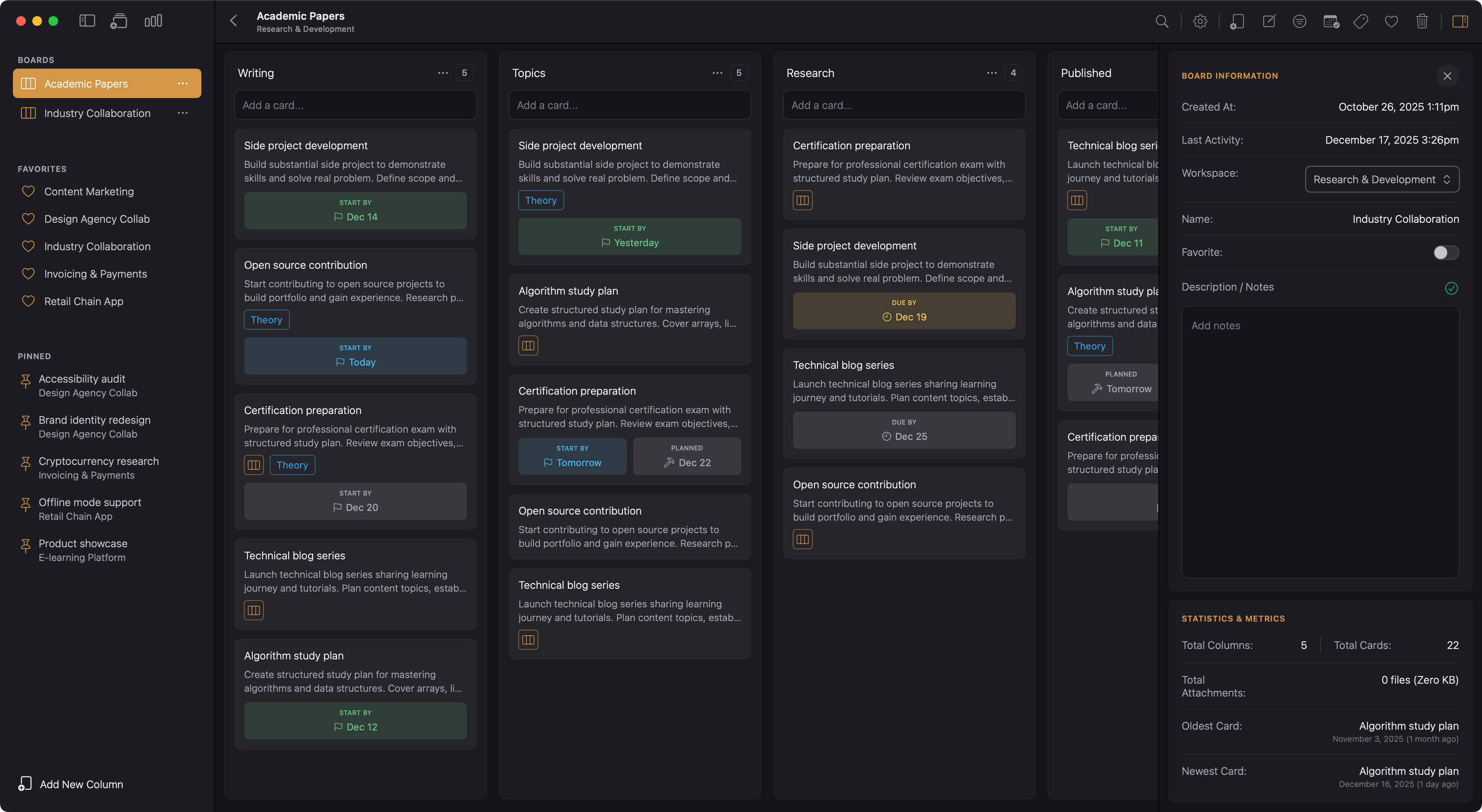
- Click the calendar icon button in the main toolbar to the right of the page
- Choose where to save the file
- Enter a filename or accept the default
Default filename
The default filename is based on the board name, formatted as "[Board Name]-calendar.ics". You can change this to any name you prefer.
Save location
You can save the file anywhere on your Mac. Common locations include:
- Desktop for quick access
- Documents folder for organisation
- A specific project folder
Using the exported file
Once you have saved the ICS file, you can use it with your calendar application.
Opening with Apple Calendar
Double-click the ICS file. Apple Calendar opens and offers to import the events. Choose which calendar to add them to and confirm.
Opening with other calendar applications
Most calendar applications have an import function:
- Google Calendar: Use the Settings > Import & Export option
- Microsoft Outlook: Use File > Open & Export > Import/Export
- Other apps: Look for an Import option, typically under File or Settings
Import behaviour
Calendar applications typically offer to either:
- Create a new calendar containing only these events
- Add the events to an existing calendar
Choose based on how you want to view the events alongside your other appointments.
Export is a snapshot
The calendar export is a one-time snapshot, not a live sync. The exported file reflects your board's dates at the moment of export.
What this means
- Changes you make in Kanodo after exporting are not reflected in the calendar
- Changes you make in your calendar application do not sync back to Kanodo
- To get updated dates, you need to export again
Keeping calendars current
If you want to keep your calendar up to date with Kanodo changes:
- Export the board again
- Delete the old events from your calendar (or the calendar containing them)
- Import the new file
This manual process ensures your calendar reflects the current state of your board.
Which cards are included
The export includes any card on the board that has at least one date set. Cards without any dates are not included in the export.
Checking for dates
Before exporting, you can verify which cards will be included by:
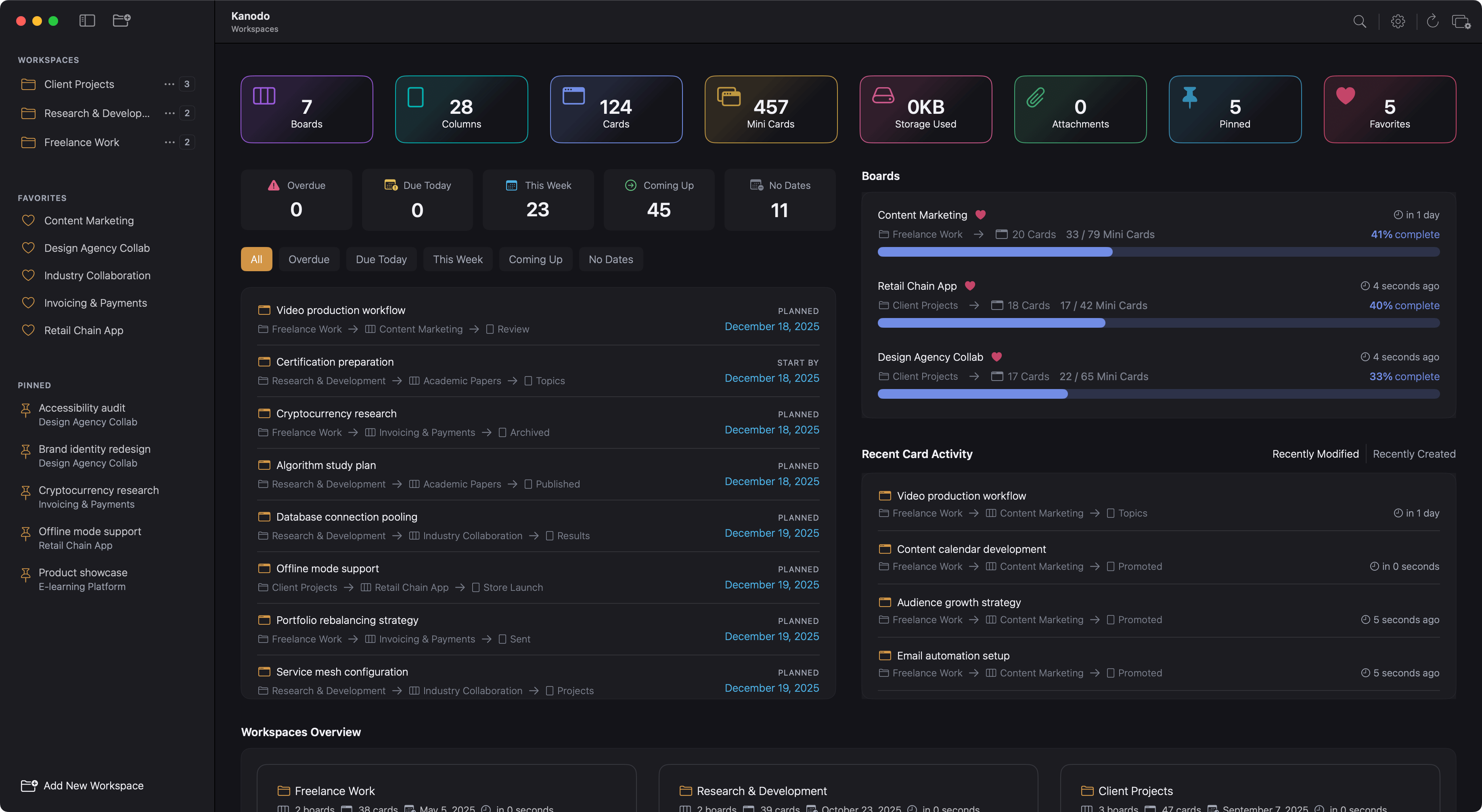
- Using the dashboard schedule widget to see dated cards
- Reviewing cards individually to see their date settings
- Using filters to show only cards with certain properties
Empty exports
If no cards on the board have dates set, the export still creates a valid ICS file, but it contains no events. If your calendar shows no imported events, check that your cards have dates set.
Event details
Full-day events
All exported events are full-day events. They appear as banners at the top of the day rather than at specific times. This reflects that card dates typically represent the day something should happen, not a specific meeting time.
Event organisation
Events are sorted chronologically in the file. When imported, they appear on the appropriate dates in your calendar.
Unique identifiers
Each event has a unique identifier based on the card and date type. This allows calendar applications to handle reimports appropriately, though behaviour varies by application.
Use cases for exports
Personal planning
Export your personal task board to see deadlines alongside appointments in your main calendar. This gives you a complete view of your commitments.
Project visibility
Export a project board to share timeline information with stakeholders. Send the ICS file via email, or import it to a shared calendar.
Time blocking
Use exported due dates to inform your time blocking. Seeing deadlines in your calendar helps you allocate time to work on tasks before they are due.
Review and planning
Export at the start of a planning session to see all your committed dates. Use this as input when deciding what to work on and when.
Limitations
No recurring events
Calendar export creates individual events. Recurring tasks in Kanodo do not export as recurring calendar events.
Full-day only
Events are always full-day events. There is no option to set specific times for exported events.
Manual sync only
There is no automatic synchronisation between Kanodo and calendar applications. Updates require re-exporting and re-importing.
Board level only
Export works at the board level. To export dates from multiple boards, export each board separately.