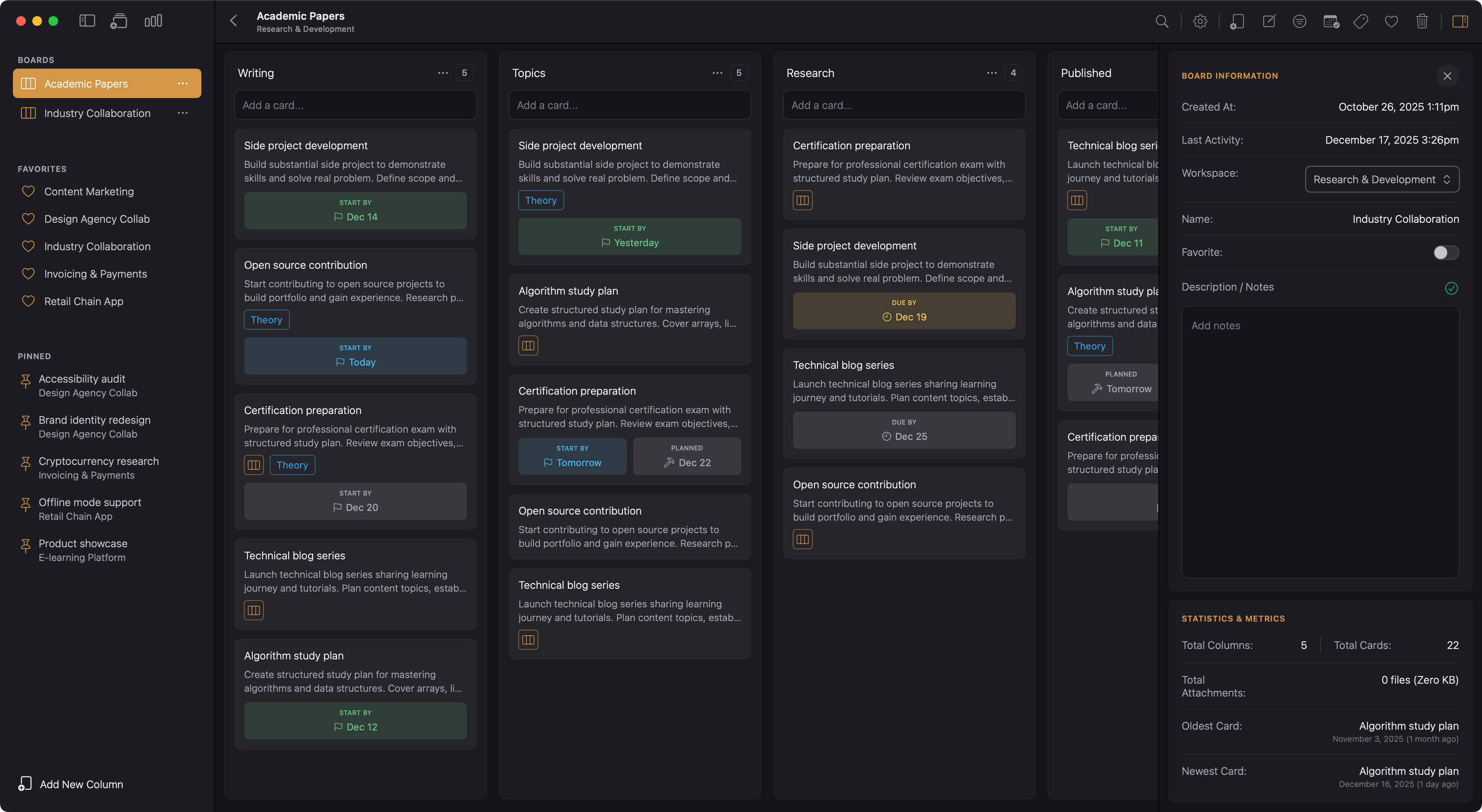
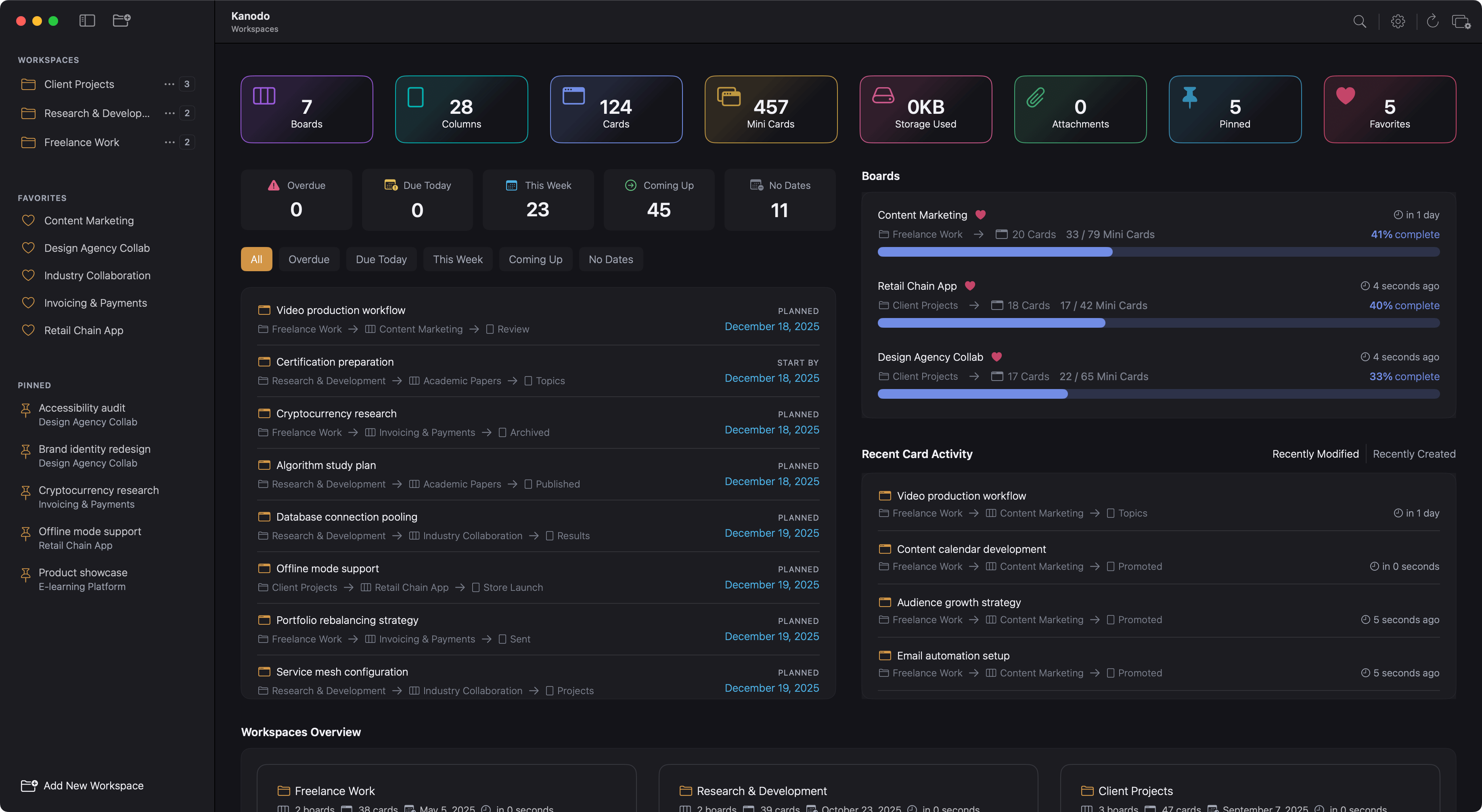
Kanodo offers extensive settings to customise the app to match your preferences. From appearance to behaviour to storage, you can configure how the app looks and works.
Accessing settings
Open Settings from the Kanodo menu by selecting "Settings", or look for the settings option in the main toolbar to the right (indicated by a cog icon). Settings are organised into categories in the sidebar. Click on a category to see and modify its options.
App settings
General application settings that affect the overall experience.
Appearance
Control the app's visual appearance.
Options:
- System Default: Follows your Mac's appearance setting (light or dark)
- Light Mode: Always uses light appearance
- Dark Mode: Always uses dark appearance
Choose based on your preference. System Default is useful if you have your Mac set to change appearance automatically throughout the day.
Primary accent colour
Choose whether to use Kanodo's branded colour or your system accent colour.
- When using the app colour, interface elements use Kanodo's branded colours.
- When using the system colour, interface elements match your macOS accent colour preference.
Date format
Configure how dates are displayed throughout the app.
Long date format
Affects how dates appear in detailed views, such as card details and dashboards. Options include various formats like "15 December 2024", "December 15, 2024", "15/12/2024", and more.
Short date format
Affects how dates appear on card badges and compact views. Options include formats like "15/12", "12/15", "15 Dec", and more.
Choose formats that match your regional preference and reading habits.
Confirm on delete
Control whether confirmation dialogs appear before deleting items.
- When enabled, deleting workspaces, boards, columns, cards, and other items shows a confirmation dialog.
- When disabled, deletions happen immediately.
Enable this if you want protection against accidental deletions. Disable if you prefer faster deletion without interruption.
Show scrollbars
Control whether scrollbars are visible in scrollable areas.
- When enabled, scrollbars are always visible.
- When disabled, scrollbars are hidden and only appear when actively scrolling.
Hidden scrollbars create a cleaner appearance but may make it less obvious that areas can scroll.
Welcome popup
Control whether the welcome screen appears when you have no workspaces.
- When enabled, opening Kanodo with no workspaces shows the welcome setup screen.
- When disabled, a simpler view appears.
This is useful to disable if you intentionally clear your workspaces and do not want the full welcome experience each time.
Sidebar settings
Configure sidebar appearance and behaviour.
Show favourites section
Control whether the Favourites section appears in the sidebar.
- When enabled, boards marked as favourites appear in a dedicated section.
- When disabled, the section is hidden and favourite functionality is not available.
Show pinned section
Control whether the Pinned cards section appears in the sidebar.
- When enabled, pinned cards appear in a dedicated section.
- When disabled, the section is hidden and pinning functionality is not available.
Show board count
Control whether the number of boards is displayed next to workspace names.
- When enabled, each workspace in the sidebar shows how many boards it contains.
- When disabled, the board count is not displayed
This helps you understand workspace size at a glance.
Board settings
Configure board display options.
Column width
Adjust how wide columns appear on boards.
- Move the slider to set the width in pixels.
- Wider columns show more card content but fit fewer columns on screen.
- Narrower columns fit more columns but show less content per card.
The default is 300 pixels. Adjust based on your display size and how much card content you typically want to see.
Show card count
Control whether columns display the number of cards they contain.
- When enabled, each column header shows how many cards are in that column.
- When disabled, card counts are not displayed
This helps you track work distribution across workflow stages.
Card settings
Configure card features and display options.
Use card dates
Enable or disable the dates feature on cards.
- When enabled, cards can have earliest, planned, and due dates.
- When disabled, the dates feature is hidden throughout the app.
Disable this if you do not use dates and want a simpler card interface.
Date badge labels
Control whether labels appear above date badges on cards.
- When enabled, date badges on cards show a label like "Due" or "Planned" above the date.
- When disabled, only the date is shown.
Labels help distinguish between date types at a glance.
Date visibility options
For each date type (earliest, planned, due), configure when the date appears on cards in the board view.
Always show
The date always appears on the card if set.
Smart display
The date appears only when it becomes relevant, based on a configurable number of days before the date.
Visibility threshold
When using smart display, set how many days in advance the date becomes visible (for example, show due dates 7 days before they are due).
Date warning threshold
Set how many days before a due date the card displays warning colours. For example, if set to 3 days, cards with due dates within the next 3 days show warning colours. This draws attention to approaching deadlines.
Use card labels
Enable or disable the labels feature on cards.
- When enabled, cards can have labels applied.
- When disabled, the labels feature is hidden throughout the app.
Disable this if you do not use labels for categorisation.
Attachment settings
Configure file attachment behaviour.
Download location
Set the default location where downloaded attachments are saved. Click to choose a folder. When you download attachments from cards, they are saved to this location.
Max files per upload
Set the maximum number of files that can be uploaded at once. This prevents accidentally uploading too many files. Choose "Unlimited" if you do not want a restriction.
Max file size
Set the maximum size for individual files. Files larger than this limit are rejected during upload. Choose "Unlimited" if you do not want a size restriction.
iCloud storage
Enable or disable iCloud storage for attachments.
- When enabled, new attachments are stored in iCloud Drive.
- When disabled, attachments are stored locally.
See attachments for detailed information on storage options and migration.
Migration
- If you have local attachments and enable iCloud, you can migrate existing files to iCloud.
- If you have iCloud attachments and disable iCloud, you can migrate files back to local storage.
Dashboard settings
Configure which widgets appear on dashboards.
Workspace dashboard widgets
For the workspace dashboard (shown when viewing a single workspace), toggle:
- Statistics: Overall numbers for the workspace
- Boards: List of boards with card counts
- Activity: Recent card changes
- Schedule: Cards with dates
- Distribution by column: Card counts per column
- Distribution by label: Card counts per label
Workspaces dashboard widgets
For the workspaces dashboard (shown when viewing all workspaces), toggle:
- Statistics: Overall numbers across workspaces
- Boards: Boards with card counts
- Activity: Recent card changes
- Schedule: Cards with dates across all workspaces
- Workspaces grid: Overview of all workspaces
Use workspace dashboards
Control whether workspace dashboards are shown.
- When enabled, selecting a workspace shows the dashboard.
- When disabled, selecting a workspace shows a simpler view prompting you to select a board.
Use workspaces dashboard
Control whether the top-level workspaces dashboard is shown.
- When enabled, the top level shows the aggregated dashboard.
- When disabled, the top level shows a simpler view of workspaces.
Settings persistence
All settings are saved automatically as you change them. They persist between app launches and survive system restarts.
Settings are stored locally and are not synced between devices. If you use Kanodo on multiple Macs, you need to configure settings on each one.