Labels are colour-coded tags that help you categorise, identify, and filter cards. Each label has a name and a colour, making it easy to spot cards of a particular type at a glance. Labels are defined per board, allowing you to create category systems tailored to each project.
Understanding labels
Labels serve multiple purposes in Kanodo:
- Visual identification: Coloured badges make it easy to spot card types when scanning your board
- Categorisation: Group cards by type, priority, area, or any other classification
- Filtering: Show only cards with specific labels to focus on a subset of work
For example:
- A project board might have labels for "Bug", "Feature", "Documentation", and "Urgent".
- A personal board might use "Work", "Home", "Errands", and "Waiting".
The label system is flexible enough to support whatever categorisation makes sense for your workflow.
Labels are board-specific
Each board has its own set of labels. Labels created on one board do not appear on other boards. This allows you to customise the categorisation system for each project's specific needs.
If you want similar labels across multiple boards, you will need to create them on each board individually.
Creating labels
Labels are created from the board sidebar panel.
Accessing label management
- Open the board where you want to create labels
- Click the label/tag icon in the toolbar to open the board label sidebar panel
Adding a new label
When the label sidebar opens you'll see an input field at the top with a placeholder shown as "Enter label name".
- Name: The label's text (such as "Bug", "Urgent", or "Waiting")
- Colour: Select a colour using the colour picker
- Click the palette icon to open the colour picker
- Use the sliders to change the colour, brightness, and saturation
- The palette icon will change to a colour block as selected
Once a label has a name and a colour is selected, press enter.
- The label will show in the label list
- The label form will reset allowing you to add more.
Choosing colours
The colour picker allows you to select any colour for your label. Consider choosing colours that:
- Are visually distinct from each other so labels are easy to tell apart
- Have meaning if possible (red for urgent, green for complete, etc.)
- Have sufficient contrast to be readable
Kanodo does not enforce any colour rules, so you have complete freedom to choose what works for you.
Label names
Label names should be:
- Brief, as they appear as badges on cards
- Clear about what they represent
- Consistent with how you think about categorisation
Good label names: "Bug", "Feature", "P1", "Blocked", "Review", "Client A"
Less effective names: "This needs attention soon" (too long), "Misc" (too vague)
Editing labels
To edit an existing label:
- Click the label/tag icon in the toolbar to open the board label sidebar panel
- Right-click on the label or click its menu button
- Select "Edit Label"
- Modify the name or colour
- Save your changes
What happens when you edit
When you change a label's name or colour, the change is reflected everywhere that label is used. All cards with that label show the updated name and colour. You do not need to reapply the label.
Deleting labels
To delete a label:
- Click the label/tag icon in the toolbar to open the board label sidebar panel
- Right-click on the label or click its menu button
- Select "Delete Label"
- Confirm the deletion
What happens when you delete
When you delete a label, it is automatically removed from all cards and mini-cards that had it applied. The cards themselves are not affected, only the label assignment is removed.
Applying labels to cards
Labels can be applied to cards and mini-cards to categorise them.
From card details
- Open the card details window or mini-card modal by clicking on the card
- Find the labels section
- Click to see available labels
- Select labels to apply them
Applied labels show a checkmark or filled indicator. Click a label again to remove it.
Multiple labels
Cards can have multiple labels applied. For example, a card might have both "Bug" and "Urgent" labels, indicating it is a high-priority bug.
There is no limit to how many labels you can apply to a single card or mini-card (within Pro version; basic version has a limit on total labels per board).
Visual display
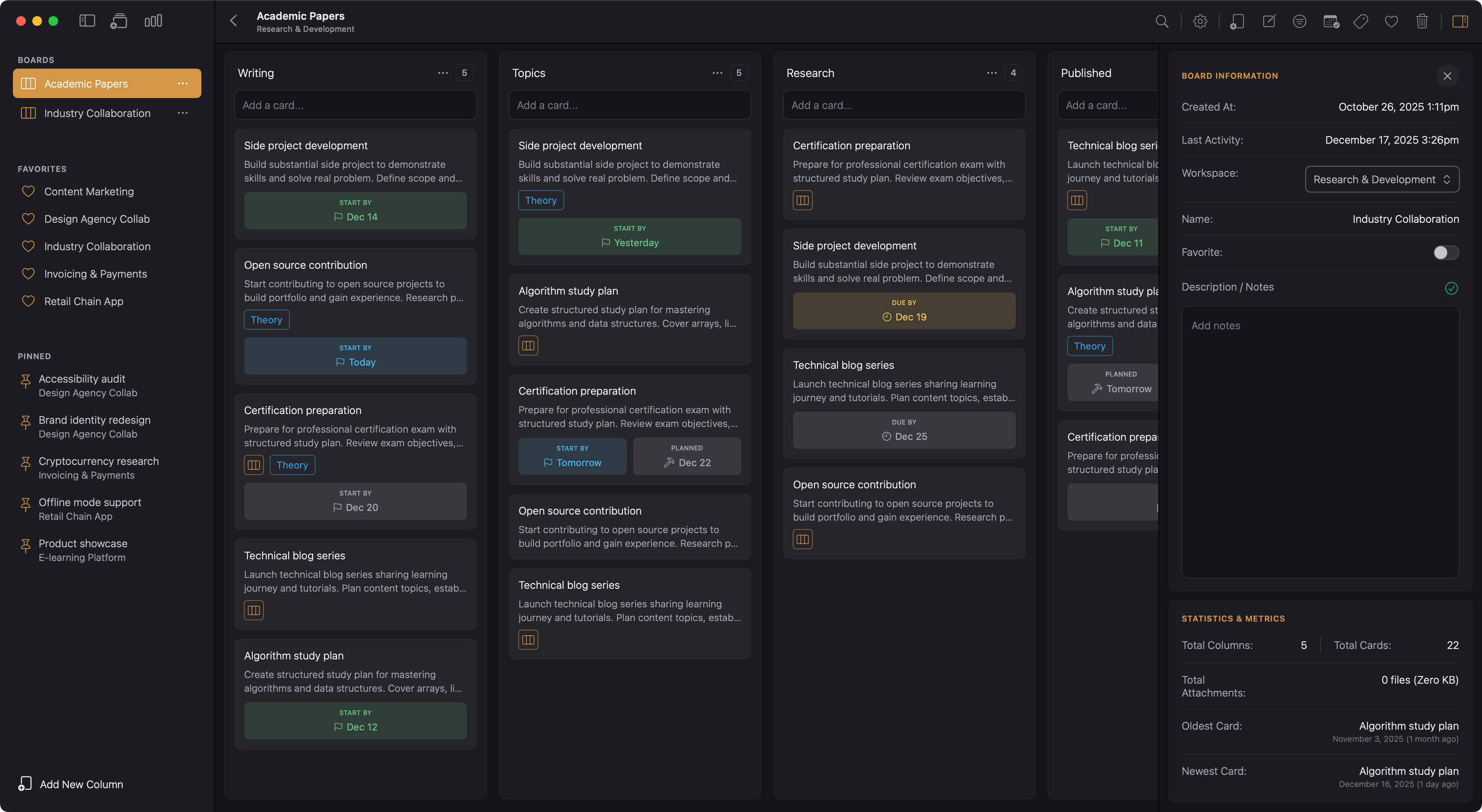
Applied labels appear as coloured badges on the card. In the board view, these badges are visible, making it easy to scan for cards of a particular type.
Removing labels from cards
To remove a label from a card or mini-card
- Open the card details window or mini-card modal by clicking on the card
- Find the labels section
- Click on the applied label to deselect it
The label is removed from the card but remains available in your board's label collection.
Using labels for filtering
One of the most powerful uses of labels is filtering your board view to show only cards with specific labels.
Accessing filters
When viewing a board, look for the filter option in the toolbar. This opens filter controls including label filtering.
Filtering by label
Select one or more labels to filter by. The board shows only cards that have at least one of the selected labels.
For example, if you select "Bug" and "Feature", you see cards that have either label (or both). Cards with neither label are hidden.
Combining with other filters
Label filters can be combined with other filter types (attachments, content, mini-board presence). When combined, cards must match all filter criteria.
For example, filtering by the "Urgent" label and "has attachments" shows only cards that have both the Urgent label and at least one attachment.
See filtering for comprehensive information on board filtering.
Clearing filters
To see all cards again, reset your filters. This removes all filter criteria and shows the complete board.
Label limits
The basic version of Kanodo allows 5 labels per board. This provides enough for basic categorisation but may feel limiting for complex projects. The Pro version removes this limit, allowing unlimited labels per board.
See Basic Vs Pro for details on version differences.
Labels across views
Board view
Labels appear as coloured badges on cards in the column view. The badge shows the label colour; name display depends on settings.
Dashboards
Dashboard widgets that show cards include label information, helping you identify card categories in schedule views and activity feeds.
Search results
Search results include label badges, helping you identify found items by their categories.