This guide walks you through your first experience with Kanodo, from launching the app to creating your first workspace and board.
System requirements
Kanodo is designed for modern macOS systems:
- Operating system: macOS 14.6+ (Sonoma) or later
- Processor: Fully compatible with both Apple Silicon and Intel Macs
- Storage: Minimal disk space required for the app itself; data storage depends on your attachments
The app is optimised for performance and runs efficiently in the background without impacting your system resources.
Installation
Download Kanodo from the Mac App Store. Once downloaded, the app is ready to use immediately. You can find it in your Applications folder or launch it directly from the App Store.
First launch
When you first open Kanodo, you are greeted with a welcome screen that helps you set up your initial workspace. This screen appears because Kanodo needs at least one workspace before you can start working.
You have two paths to choose from, each suited to different preferences.
Option 1: Create your own workspace
Choose this option if you want to start with a clean slate using your own naming scheme.
Step 1: Name your workspace
Enter a name for your first workspace. This should represent a broad area of your life or work. Good examples include:
- "Personal" for personal tasks and projects
- "Work" for professional responsibilities
- "Freelance" for client work
- "Home" for household management
The workspace name can be changed later, so do not worry too much about getting it perfect.
Step 2: Name your first board
Next, enter a name for your first board within that workspace. The board represents a specific project or collection of tasks. Examples include:
- "Weekly Tasks" for recurring to-dos
- "Home Renovation" for a specific project
- "Q1 Goals" for quarterly planning
Step 3: Setup complete
After confirming your choices, Kanodo creates your workspace and board, then takes you directly to your new empty board. From here, you can start adding columns and cards.
Option 2: Use sample data
Choose this option if you prefer to explore the app with example content already in place. This is particularly helpful if you want to understand how all the features work together before setting up your own structure.
When you select this option, Kanodo creates a demonstration workspace populated with:
- Multiple boards showing different use cases
- Columns representing various workflow stages
- Cards with example content, dates, and labels
- Labels demonstrating the colour-coding system
This gives you a fully populated environment to explore. You can modify or delete the sample content at any time, or simply delete the workspace entirely once you understand how things work.
Understanding the interface
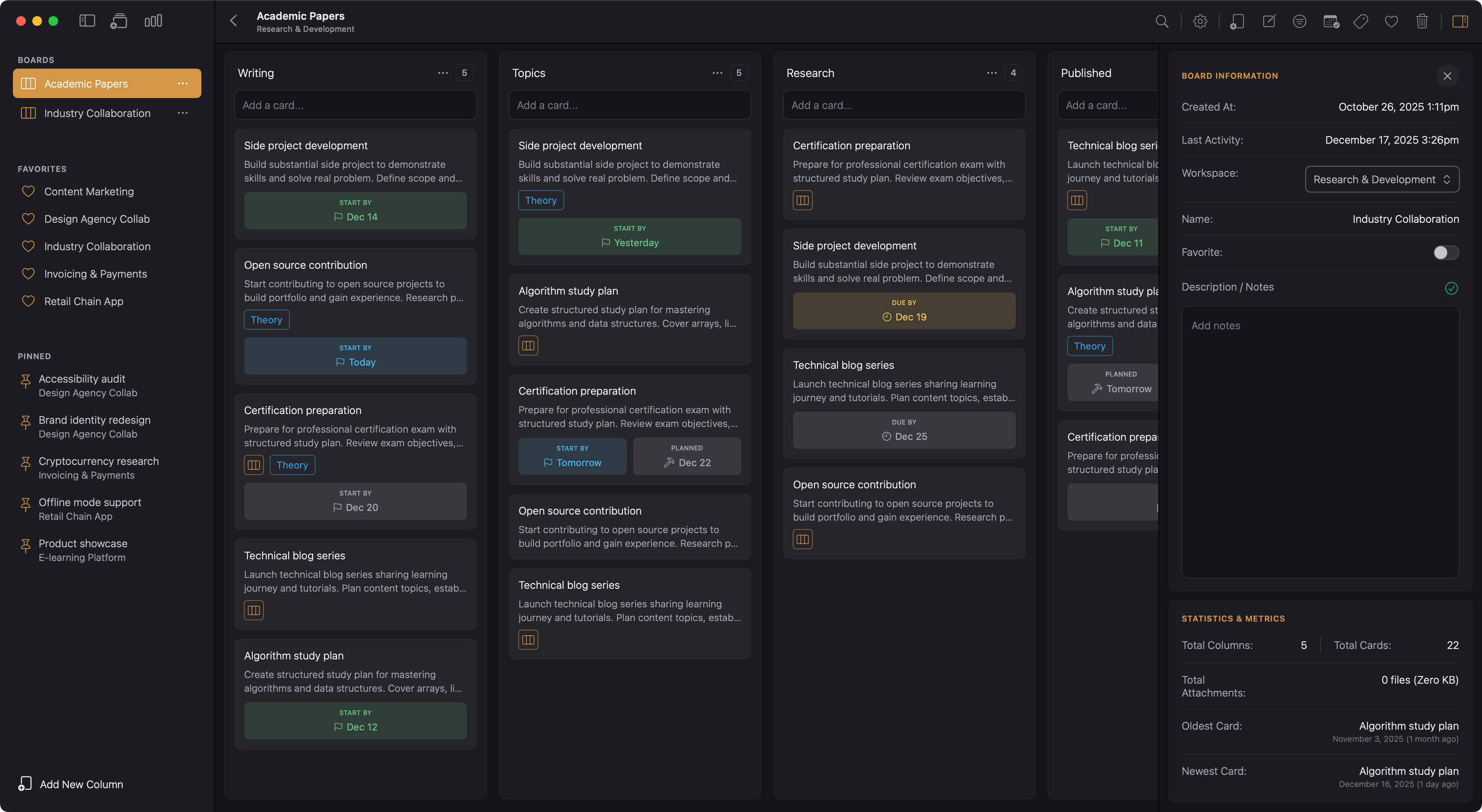
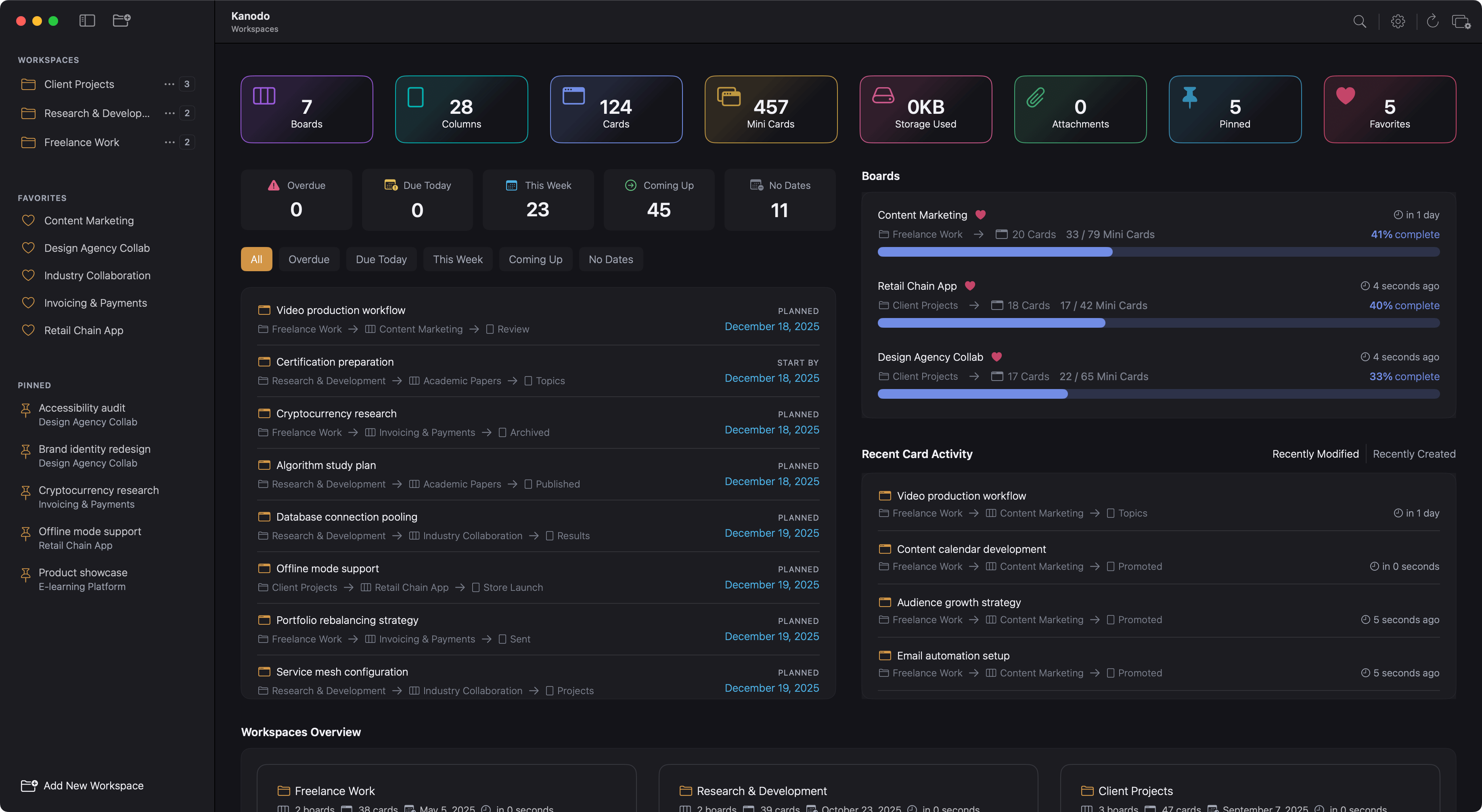
After completing the welcome setup, you see the main Kanodo interface. Understanding its layout will help you navigate efficiently.
The sidebar
The left side of the window contains the sidebar, which provides navigation throughout the app.
Workspaces section
Shows all your workspaces. Click a workspace to see its boards. When viewing a specific workspace, this section shows that workspace's boards instead.
Favourites section
Boards you have marked as favourites appear here for quick access, regardless of which workspace they belong to.
Pinned section
Cards you have pinned appear here, allowing you to jump directly to important items from anywhere in the app.
Toolbar
The top of the sidebar contains action buttons depending on what you are viewing: workspaces, workspace, board or search results.
Footer
At the bottom of the sidebar, you'll typically find a quick link to create a workspace or board depending on which view you are in.
The main content area
The central area displays your current view, which could be:
- A workspace dashboard showing an overview of activity
- A board with columns and cards
- Search results
- Settings panels
The toolbar
Above the main content area is the toolbar.
Left of the toolbar
is the title. this will often change to show where you currently are in the application.
Right of the toolbar
are contextual tools which appear based on what you are viewing. When viewing a board, you see options for filtering, accessing the board sidebar panel, and other board-specific actions.
Global Search
You'll also find a global search option on all views to find items across all your workspaces. When you are viewing a board, additional search are options are available.
Settings Access
The cog settings icon is displayed in the left of the toolbar of all pages except the settings page itself. This allows you to change settings at any point.
Creating your first content
With your workspace and board created, you are ready to add content.
Adding columns
Your board needs at least one column before you can add cards. Click the "Add Column" button (this appears in the centre of an empty board or at the right edge of existing columns).
Enter a name for your column. Common starting points include:
- Simple workflow: "To Do", "Doing", "Done"
- Content creation: "Ideas", "Drafting", "Review", "Published"
- Project management: "Backlog", "This Week", "In Progress", "Complete"
Adding cards
Once you have at least one column, you can add cards. Look for the "Add card" area at the top of a column. Click it, type a title for your task or item, and press return.
Your card appears in the column. Click on it to open the details window where you can add content, dates, labels, attachments, and more.
Moving cards
As work progresses, drag cards between columns. Click and hold on a card, drag it to the target column, and release. This visual movement is the essence of kanban workflow management.
The welcome screen setting
By default, the welcome screen appears whenever you have no workspaces. If you delete all your workspaces, it will appear again to help you create a new one.
You can control this behaviour in Settings. The "Always show welcome popup" option determines whether this screen appears. If you disable it, you will see a simpler interface when you have no workspaces, with basic options to create one.
What to do next
With your first workspace, board, column, and card created, you have the foundation in place. From here, you might want to:
- Add more columns to represent your complete workflow
- Create additional cards for your current tasks
- Explore the card details window to learn about content editing, dates, and labels
- Read about boards to understand favourites, the sidebar panel, and board management
- Learn about labels to start categorising your cards
The rest of this guide provides detailed coverage of every feature. Refer to specific sections as you need them, or read through sequentially to build comprehensive knowledge of the app.