Kanodo provides comprehensive search functionality to help you find items across your workspaces. Whether you are looking for a specific card, a mini-card within a nested board, or a file attachment, search helps you locate it quickly.
Understanding search
As your collection of workspaces, boards, and cards grows, finding specific items becomes increasingly important. Search allows you to locate items by their names and content without manually navigating through your hierarchy.
Kanodo offers different search scopes for different needs:
- Board search: Find cards on the current board
- Global search: Find items across all workspaces
Accessing search
The search icon is available in the main app toolbar to the right. This is displayed on all pages except the settings page. Click the search icon to toggle the opening/closing of the search bar.
Board search
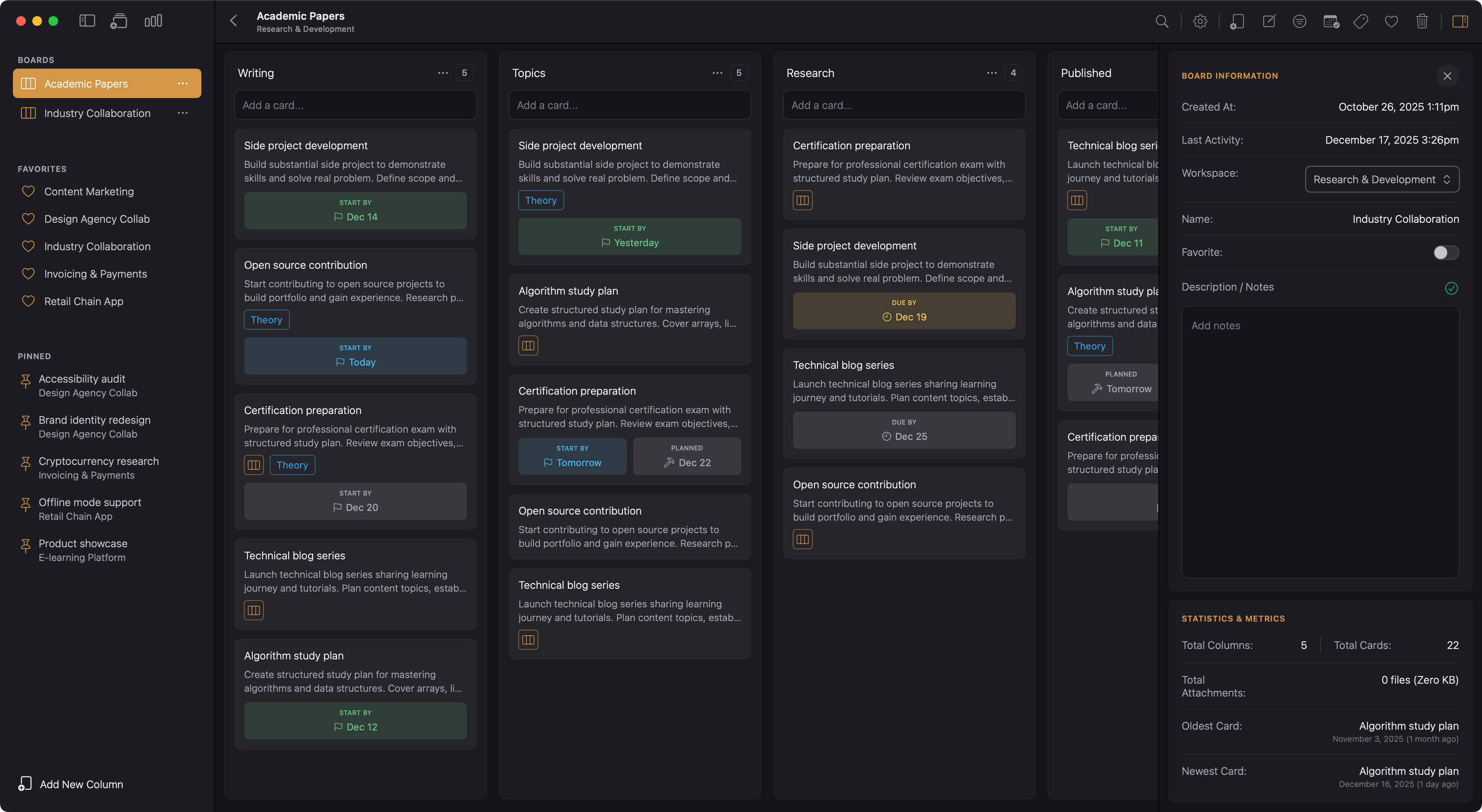
When viewing a board, you can search for cards on that specific board or globally. A drop-down box with options will be shown so you search just in the board (default) or globally. As you type, the board filters in real time to show only cards matching your search terms.
What is searched
Board search looks at card titles and content. If your search term appears in either the card's title or its content, the card is shown. Cards that do not match are hidden.
Clearing the search
Delete the text from the search field or click the clear button to remove the filter and see all cards again.
Global search
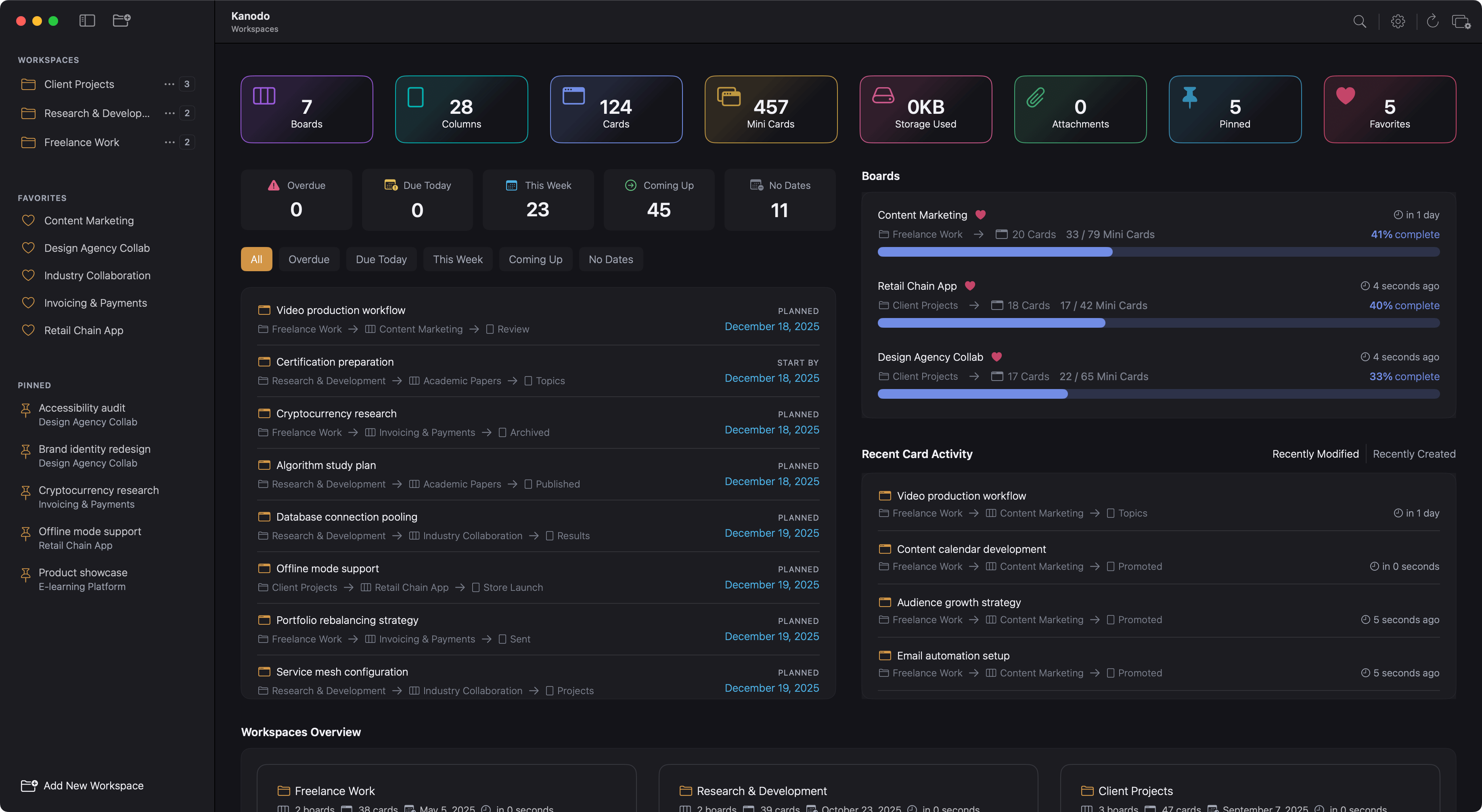
For searching across all workspaces, boards, and cards, use global the search. When not viewing a board, the options are not displayed and will search globally by default.
Search results
Global search results are organised by type:
Workspaces, boards and cards
- Workspaces: Workspaces with names matching your search
- Boards: Boards with names matching your search
- Cards: Cards with titles or content matching your search
Mini Cards
Results related to mini-cards that have a title or content that matches the search. This will display which workspace, board and card the mini-card is linked to
Attachments
Attachments that have file names related to the search query. Attachment search results show:
- The filename
- File size and type
- Which card the file is attached to
- Which board and workspace the file belongs to
Navigating to results
Click on any search result to navigate directly to that item:
- Clicking a workspace takes you to that workspace
- Clicking a board opens that board
- Clicking a card opens the card details window
- Clicking a mini-card opens the card details window and then opens the mini-card modal.
Search performance
Global search begins after you type a few characters and pauses briefly (debounced) to avoid searching on every keystroke. Results appear as they are found.
Debouncing
Search input is debounced, meaning there is a brief delay between when you stop typing and when the search executes. This prevents searches from running on every keystroke, which would be inefficient and potentially disruptive.
Result limits
Search results may be limited to a reasonable number to maintain performance. If your search matches many items, the most relevant or recent results are shown first.
Loading indicators
While search is in progress, a loading indicator may appear. This is normal for large data sets or complex searches.
Finding specific items
Searching for exact text
Enter the exact text you are looking for. Search matches items containing that text anywhere in the searchable fields.
Partial matches
Search works with partial text. Searching for "report" would find cards titled "Quarterly Report", "Report findings", and "Sales reporting".
Case sensitivity
Search is case-insensitive. Searching for "Report" finds the same results as searching for "report" or "REPORT".
Using search effectively
Keep titles descriptive
The more descriptive your card and mini-card titles, the easier they are to find through search. A card titled "Q1 Marketing Analysis for Client ABC" is more searchable than one titled "Analysis".
Use content for searchability
Since card content is also searched, you can add keywords or context to the content that helps with future searches, even if that information is not needed for the task itself.
Remember what you are searching
Choose the appropriate search scope:
- Use board search when you know which board the item is on
- Use global search when you are not sure where something is
Start broad, then narrow
If you cannot find something, try broader search terms first, then narrow down. Searching for "marketing" might give many results, but helps you confirm the item exists and understand where to look more specifically.